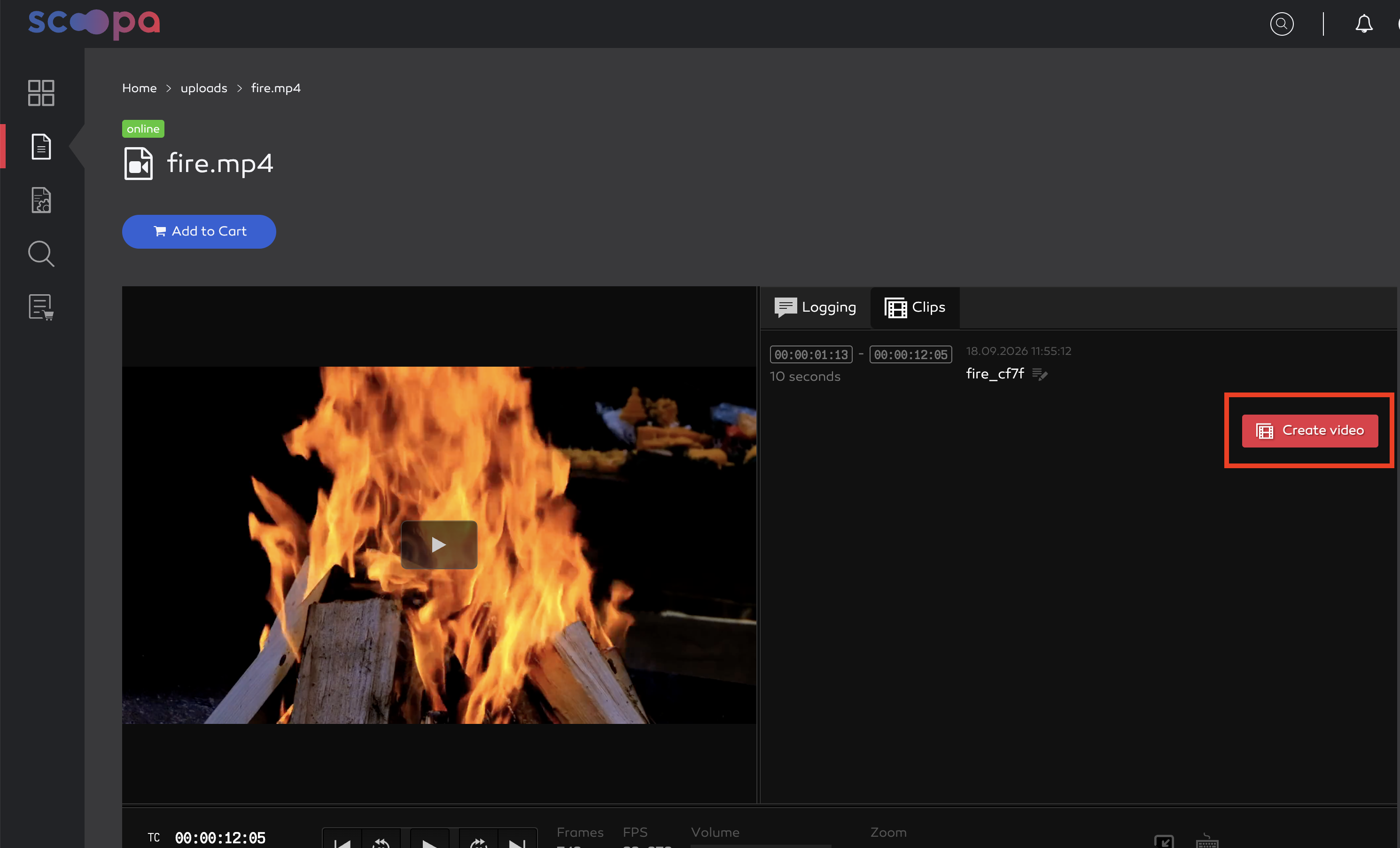
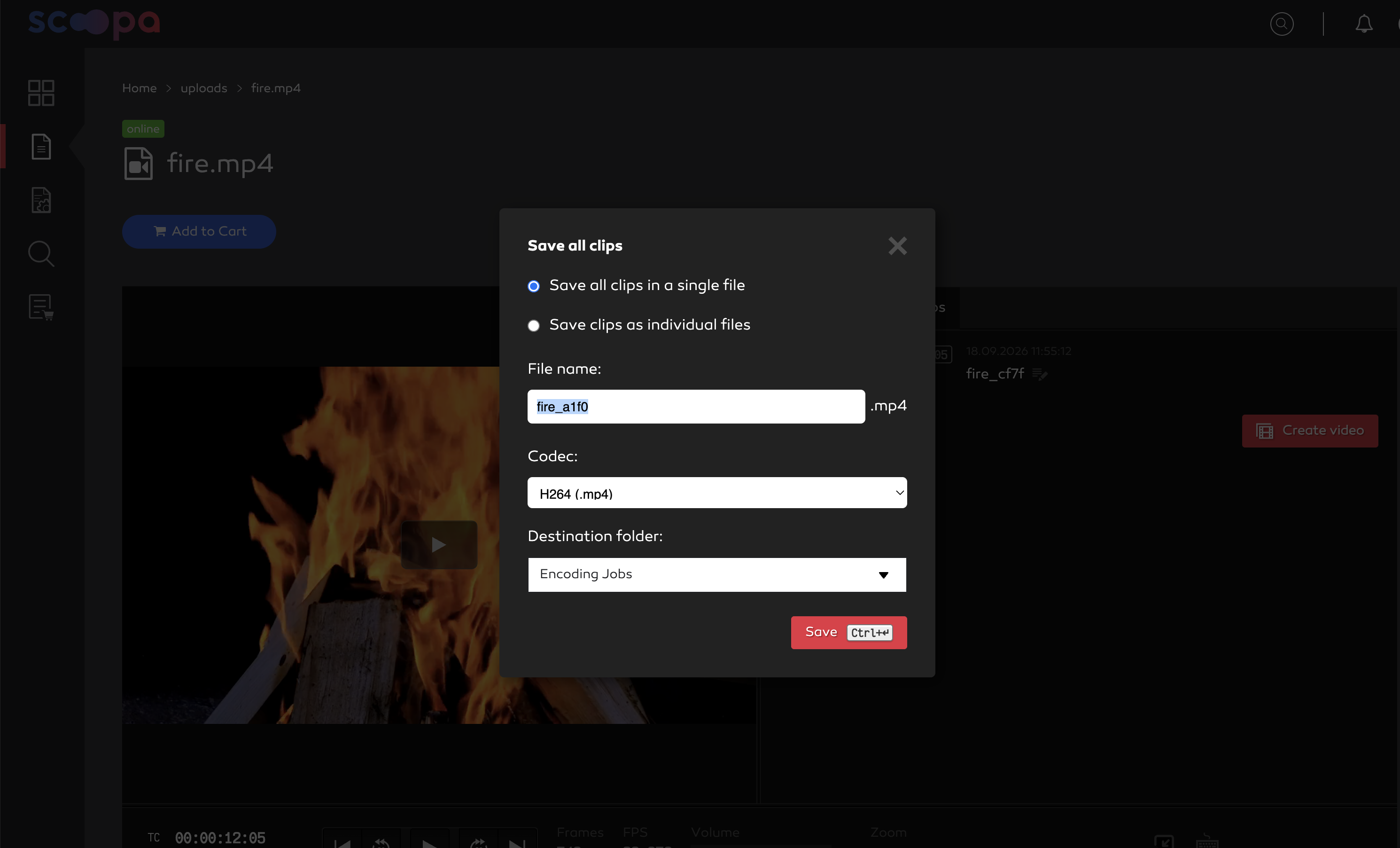
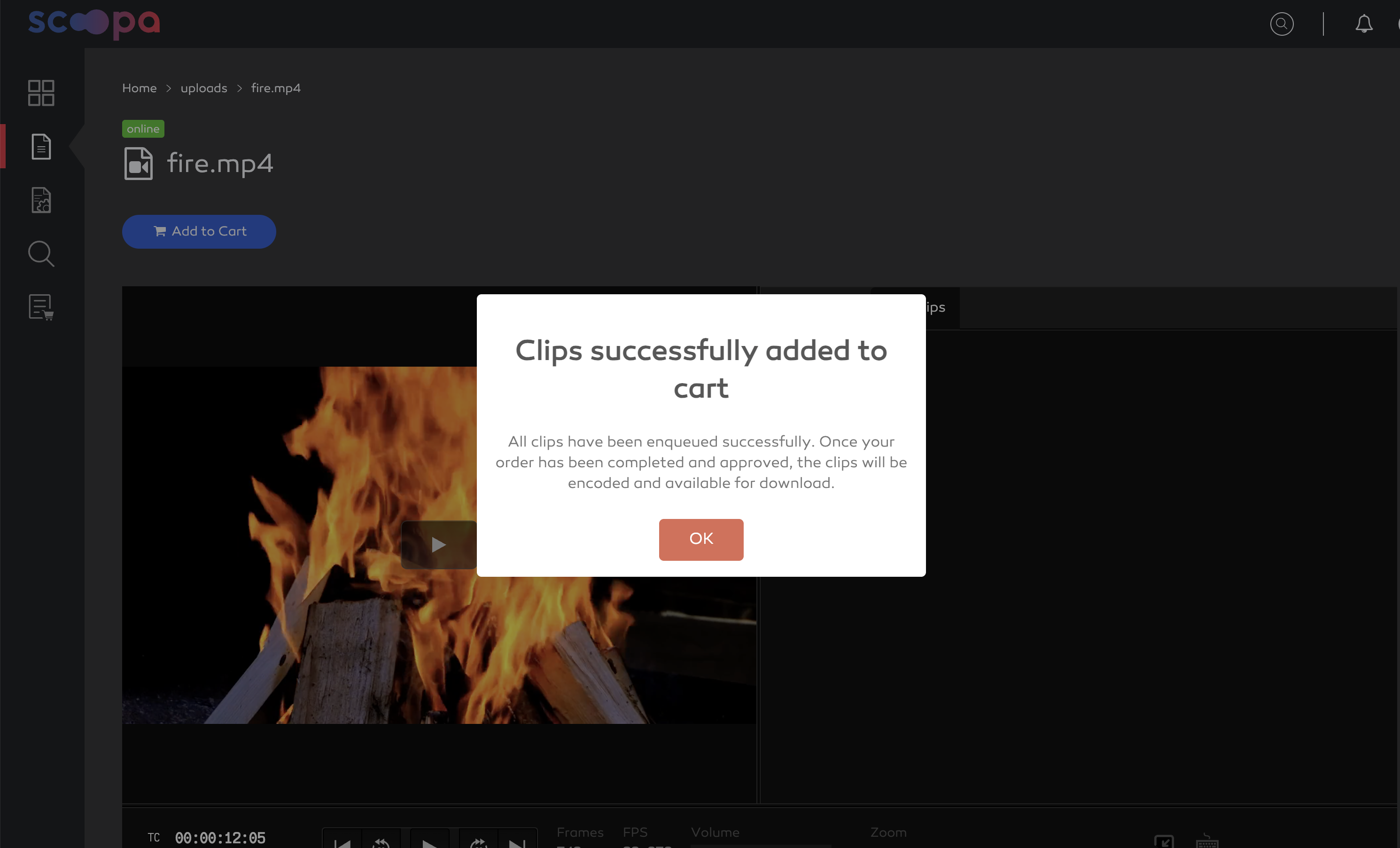
Add asset to cart
To order an asset, you must first navigate to the file view. There, the “Add to Cart” button appears (provided the user has the “Can place orders” permission).
When the user clicks this button, a shopping cart icon appears in the upper-right corner of the menu bar, along with a badge showing the number of assets in the cart (here: “1”). If there are already one or more assets in the cart, the counter will increase accordingly.
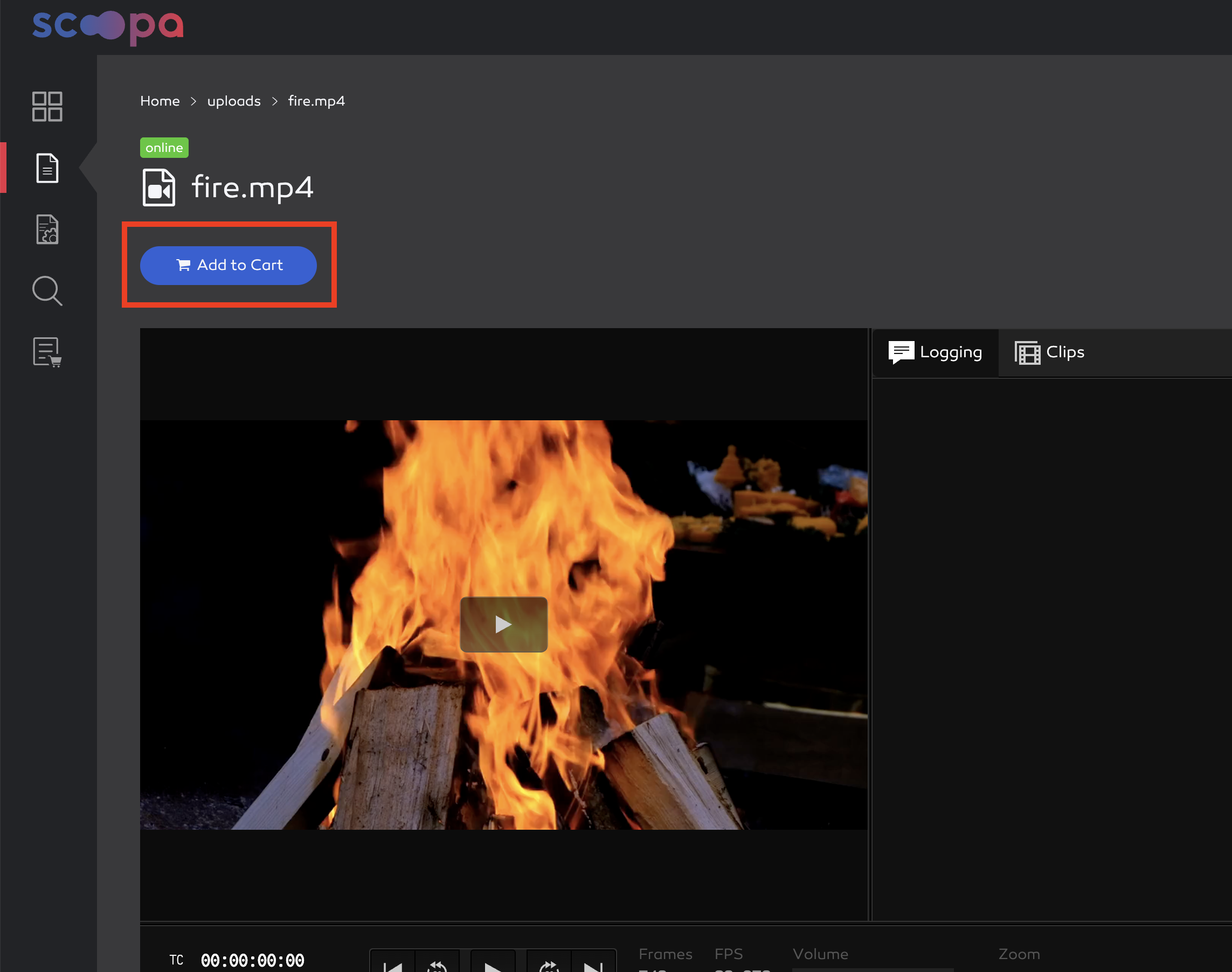
add asset to cart
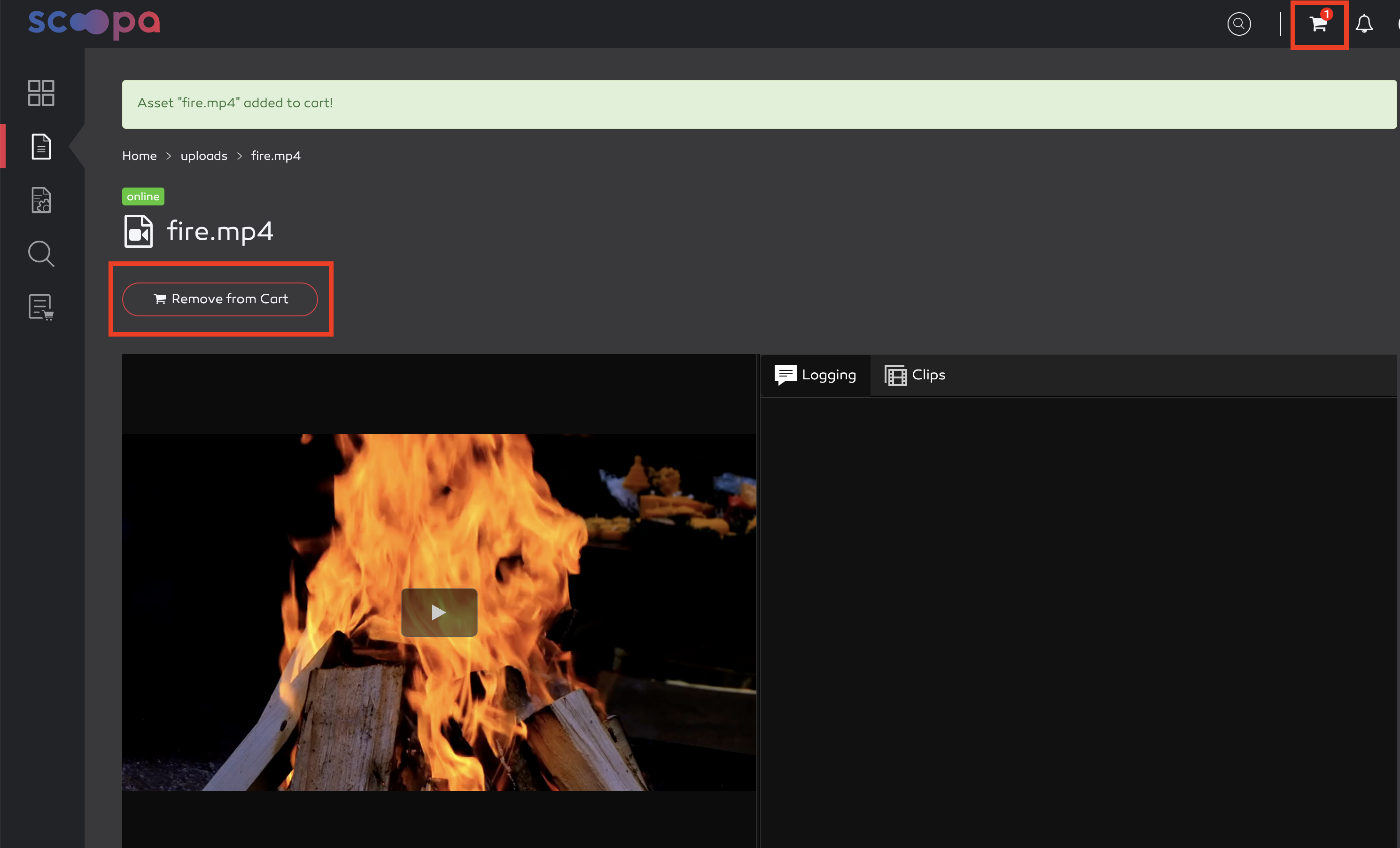
asset added to cart
The action can be undone by clicking the “Remove from Cart” button that now appears in the file view. Alternatively, the asset can also be removed from the order in the cart view.