-
Introduction
-
Core concepts
-
Digging deeper
-
Frequently asked questions
-
Legal
Orders
Users can place orders for assets within a folder, provided they have read access to the folder and are granted the “Can place orders” permission.
As soon as an order is submitted, the designated “Approver” (see the “Cost Control” section) is notified and can approve the order, allowing the user to download the assets within 7 days.
Add asset to cart
To order an asset, you must first navigate to the file view. There, the “Add to Cart” button appears (provided the user has the “Can place orders” permission).
When the user clicks this button, a shopping cart icon appears in the upper-right corner of the menu bar, along with a badge showing the number of assets in the cart (here: “1”). If there are already one or more assets in the cart, the counter will increase accordingly.
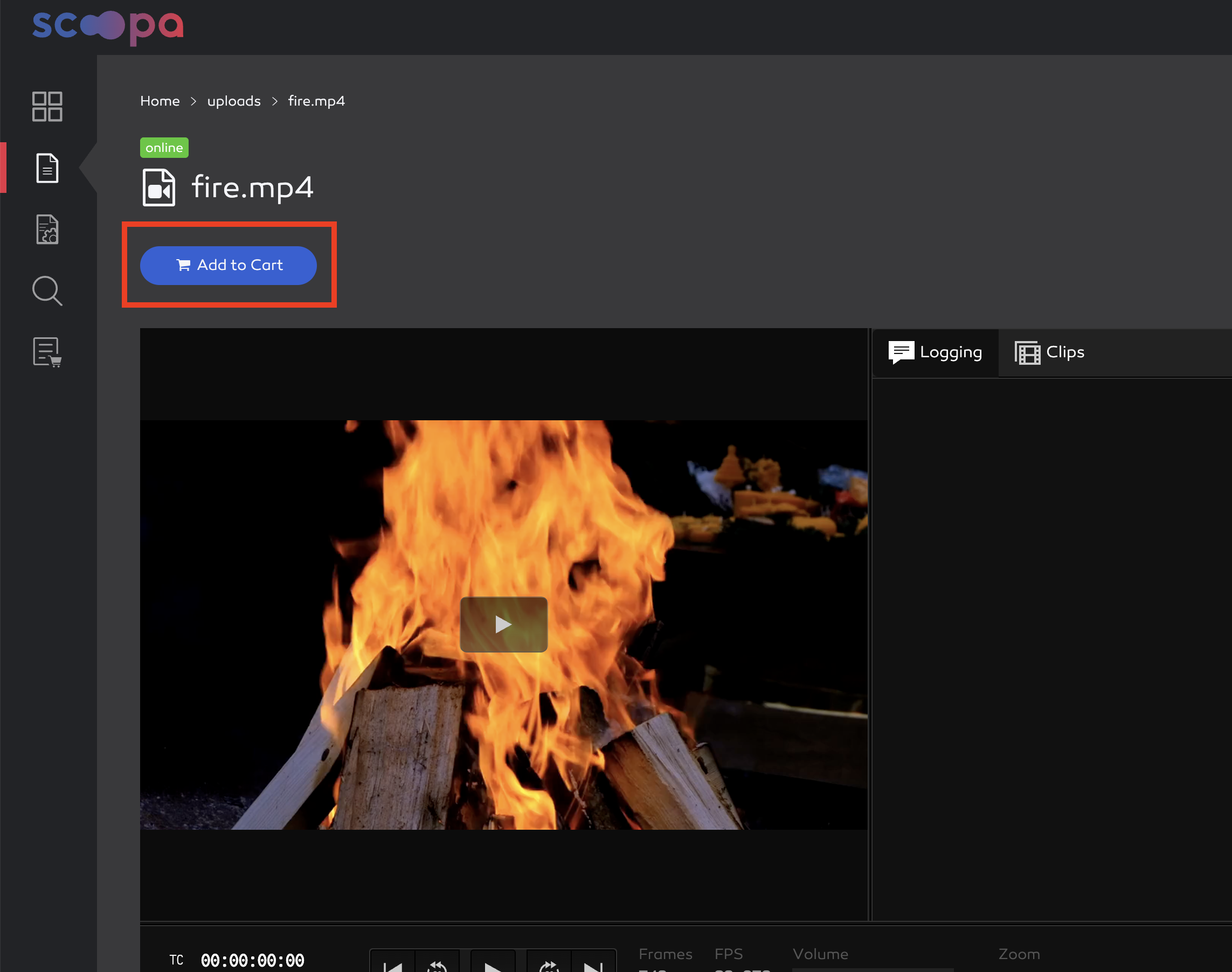
add asset to cart
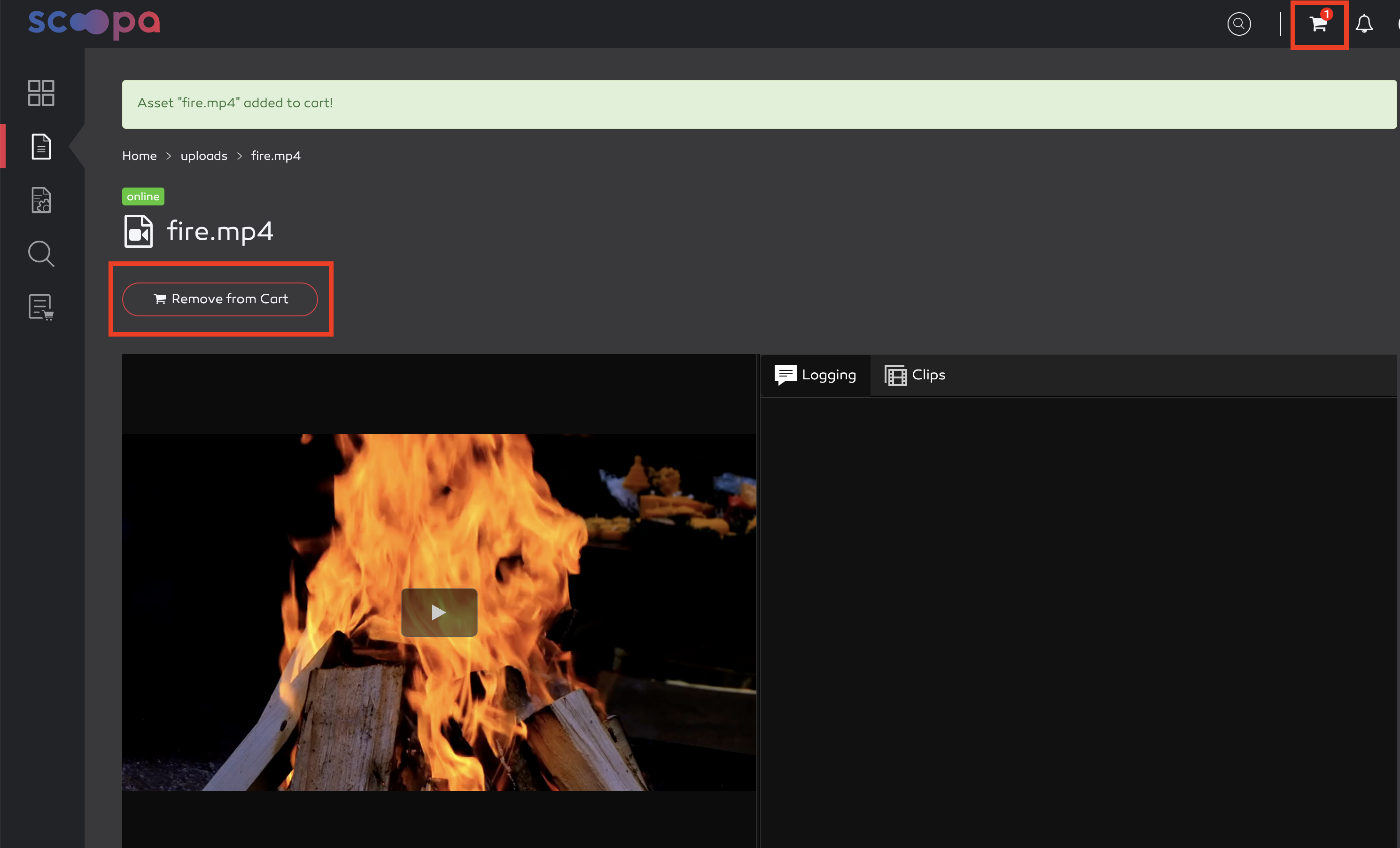
asset added to cart
The action can be undone by clicking the “Remove from Cart” button that now appears in the file view. Alternatively, the asset can also be removed from the order in the cart view.
Add clip to cart
Clips can also be ordered provided you have read access and the “User can use Editor” permission is not enabled. Here's how to create clips.
Clicking “Save” adds the ordered clips to the cart and creates the encoding job, which initially receives the status “waiting for approval.” Encoding does not begin until the admin approves the request. As soon as the clip(s) are ready, an email is sent to the person who placed the order.
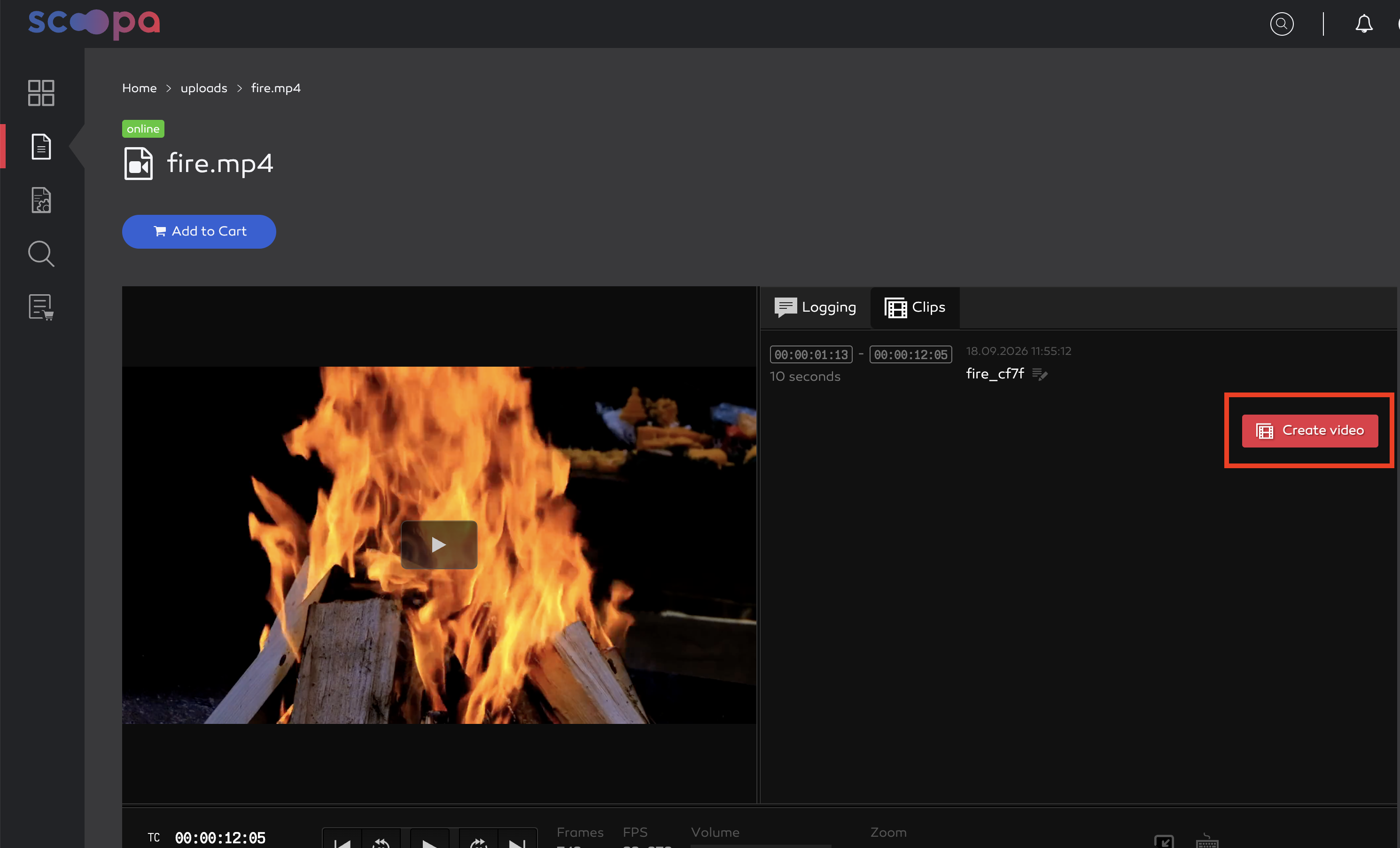
create clip
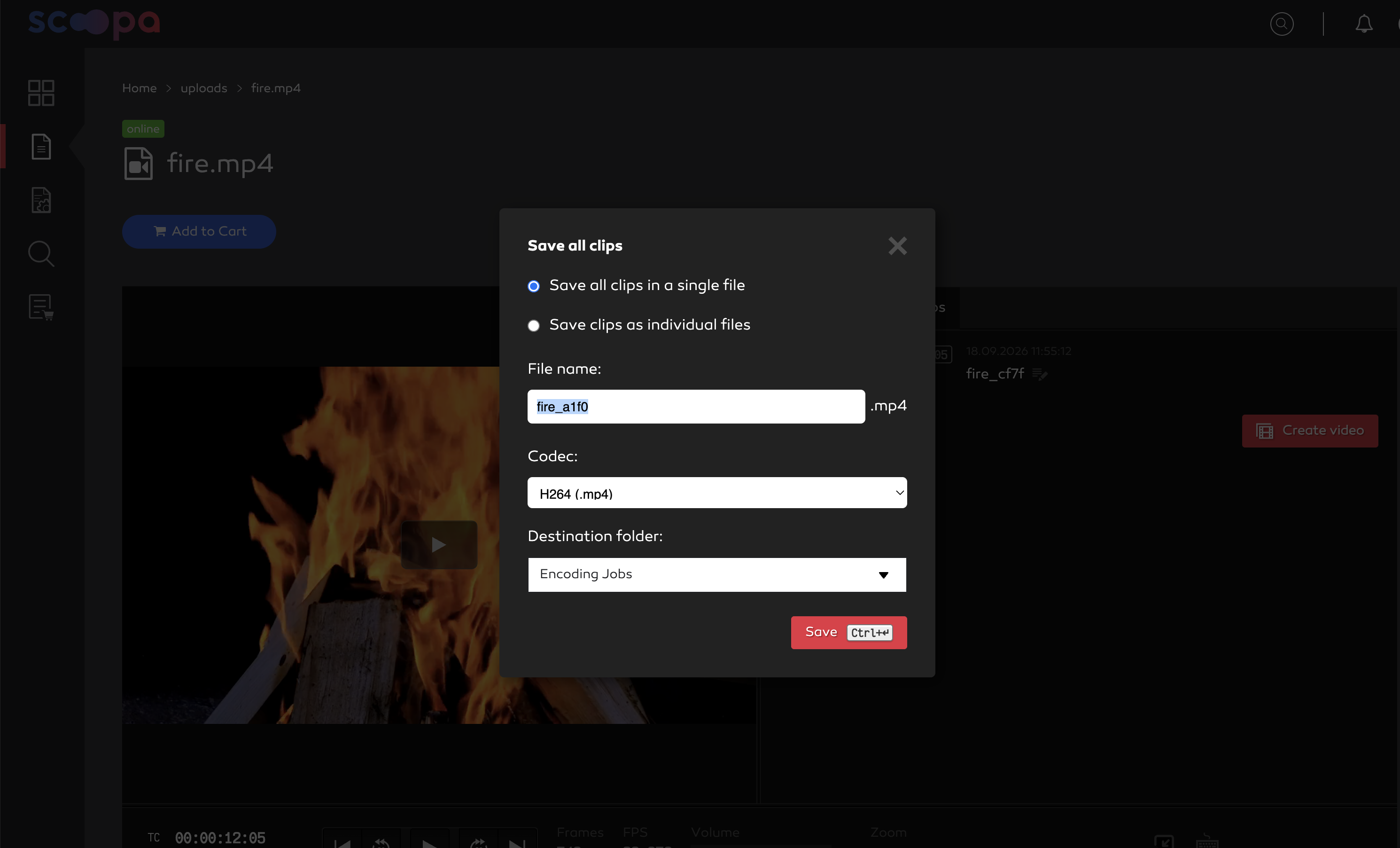
clip settings
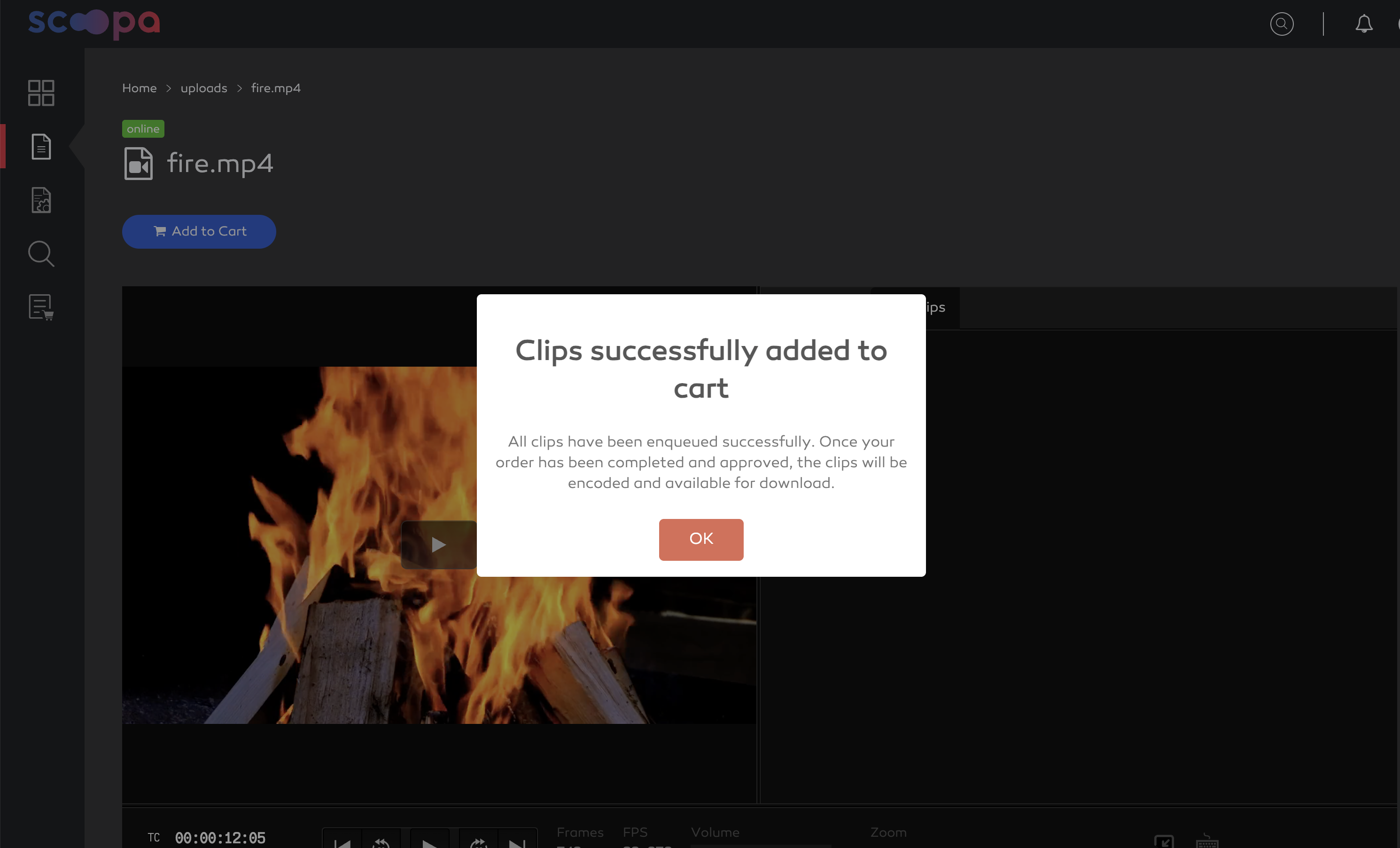
clips successfully added to cart
Place order
Clicking the shopping cart icon in the upper-right corner opens the shopping cart. The view can be switched between "grid" and "list" view, similar to the folder/file view.
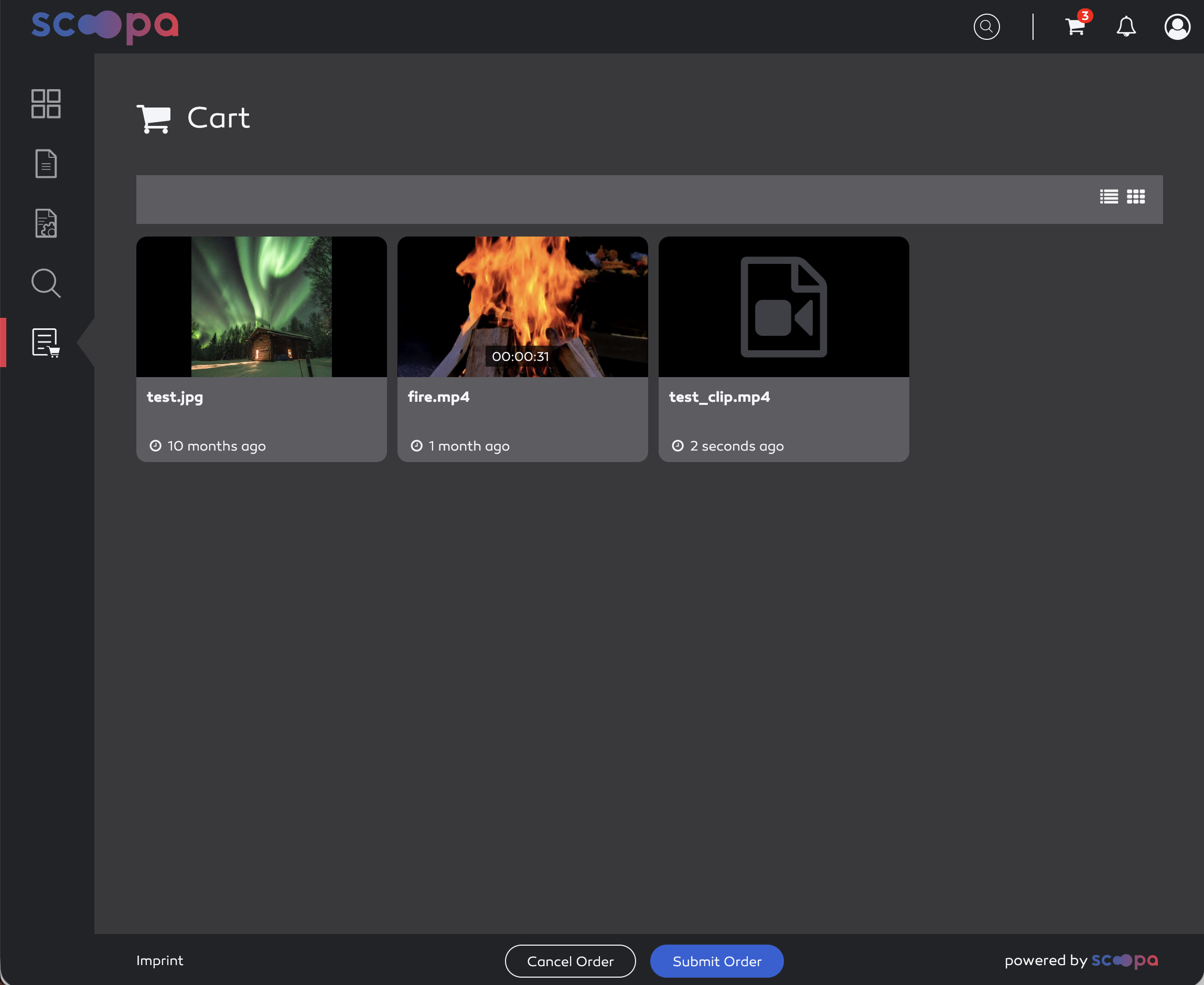
show cart
The following options are available here:
removing an asset: When you hover over an asset (Grid view), a trash can icon appears in the upper-right corner. Clicking it removes the asset from the order.
cancel order: cancels the order and removes all assets from the shopping cart.
submit order: the order is submitted. Upon submission, the system checks again to ensure that all assets are still available. If one or more assets are no longer available, a message about the missing assets appears and the shopping cart is updated. The user receives an order summary via email. The approver(s) are also notified via email that an order has been placed and can approve or reject it.
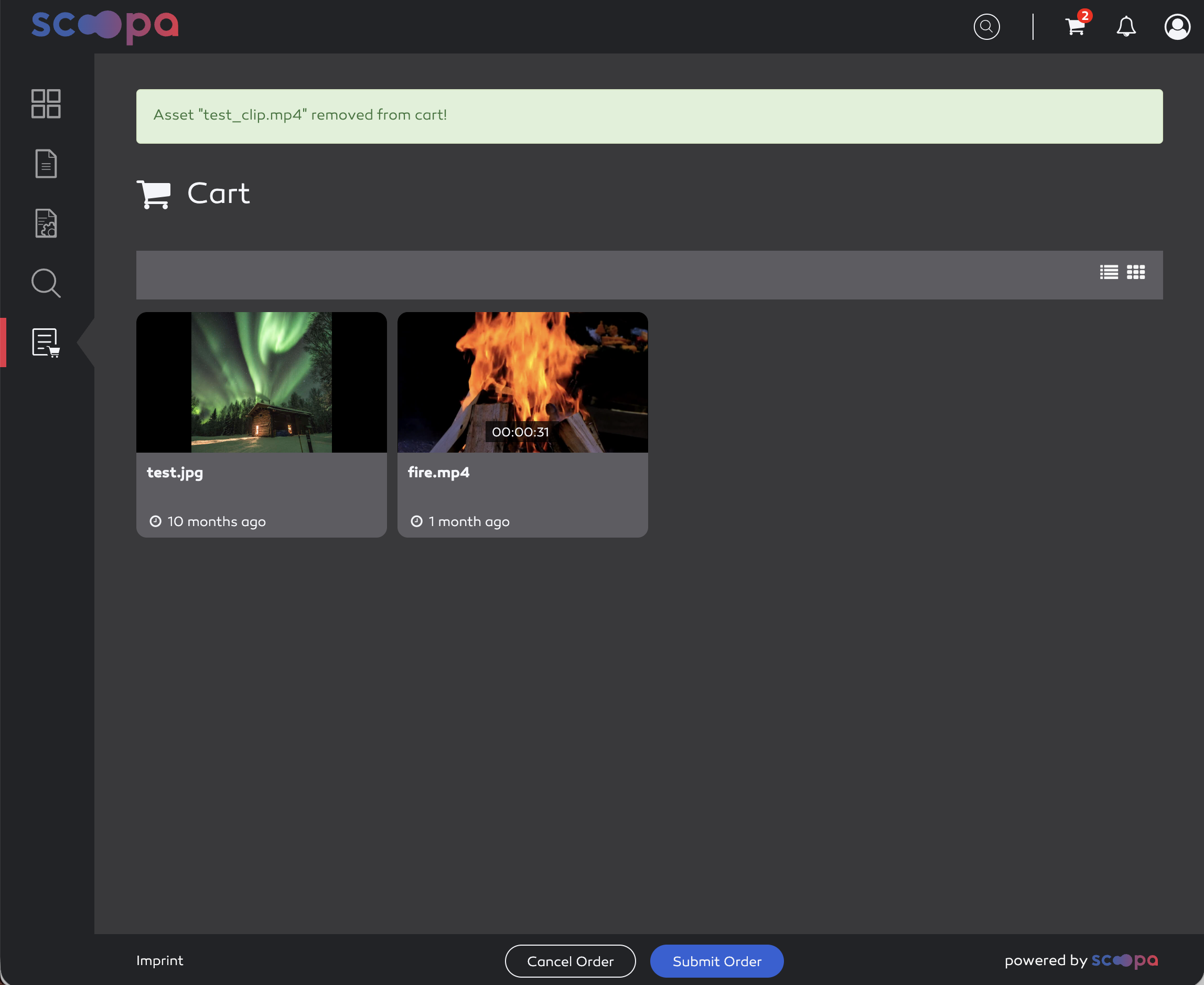
remove item from cart
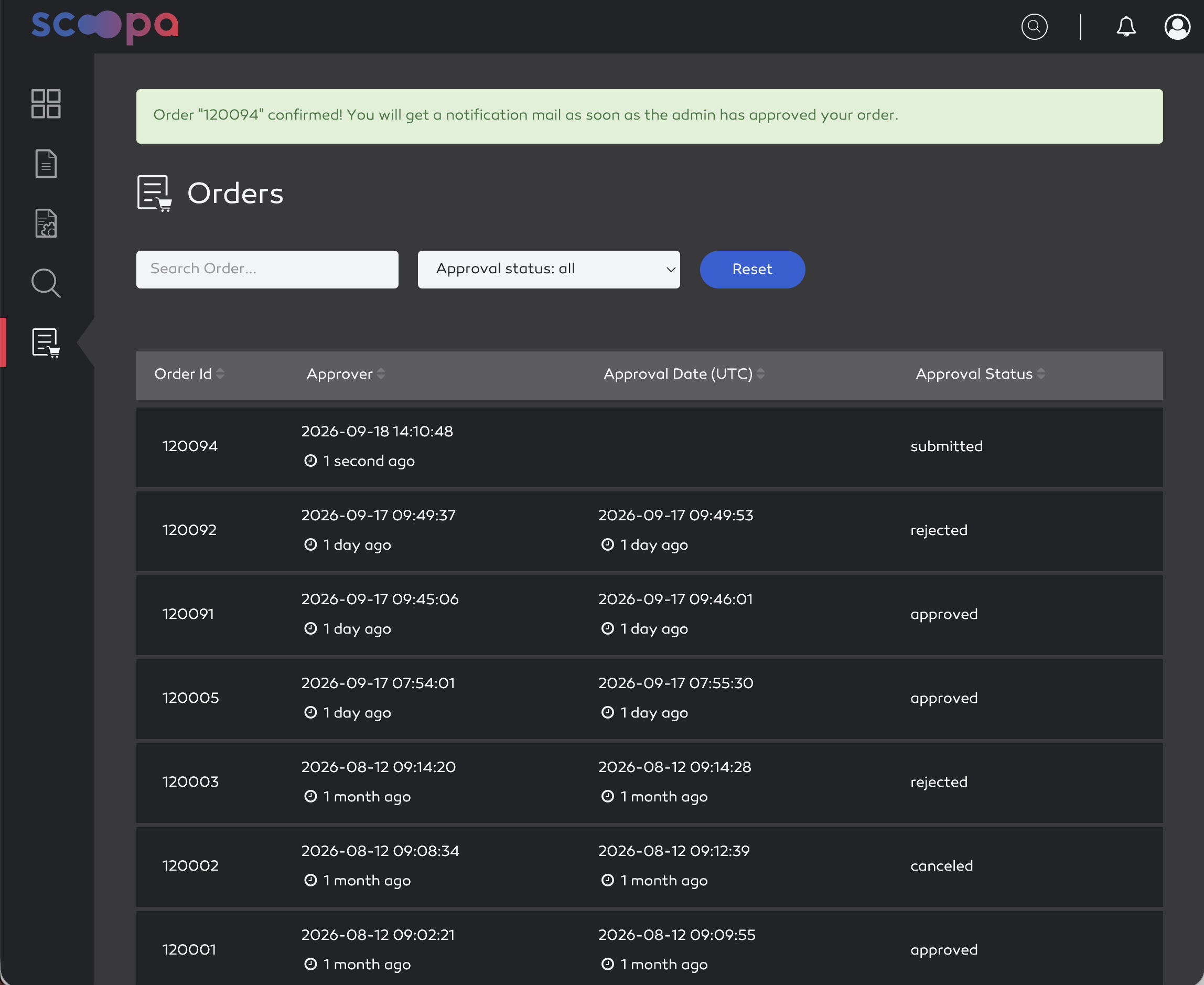
confirm order
Approve or reject order
When the approver clicks the link in the order request, they are taken directly to the order details page. There, they can review the order and either approve or reject it.
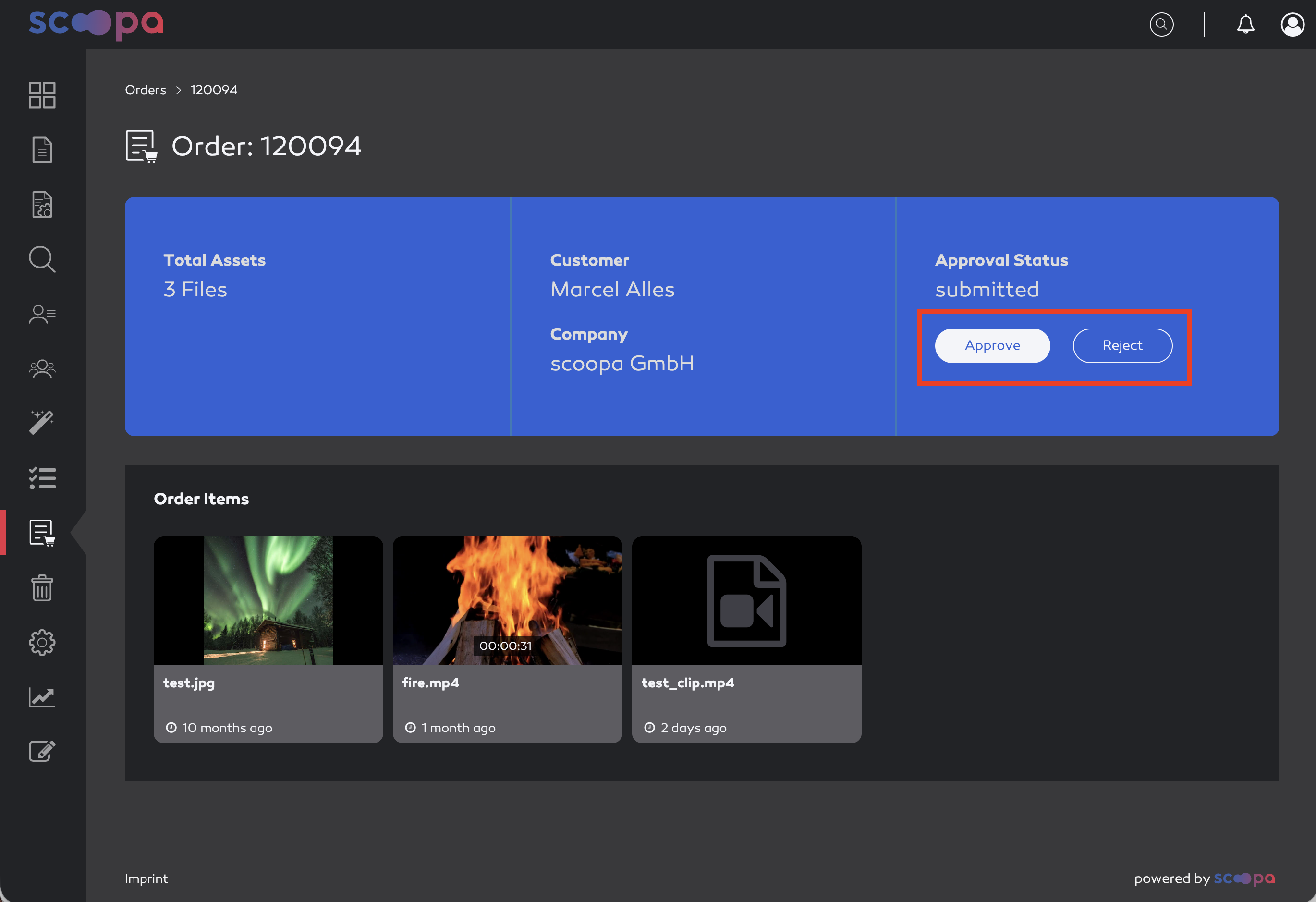
order details
Approve order
Clicking “Approve” approves the order. The system first checks whether all assets are still available. If one or more assets are no longer available, the admin receives a corresponding notification.
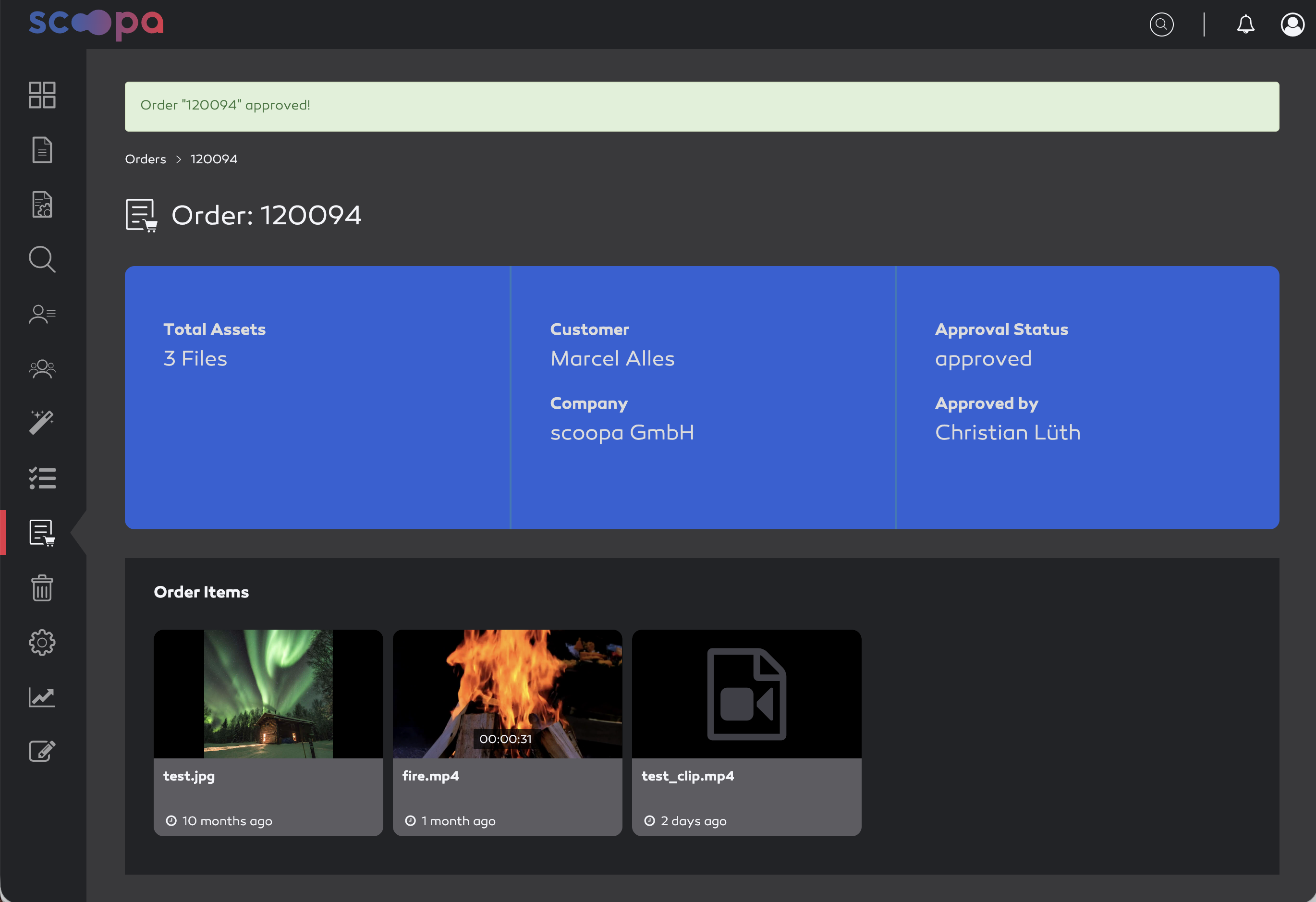
order approved
A subfolder with the order number is then created for the customer under the “Orders” system folder. This folder contains copies of all ordered assets to ensure that the customer can still download an asset even if the original has since been deleted or archived. Furthermore, after approval, all ordered clips are moved to this folder and encoded. Once encoding is successfully completed, the customer receives a corresponding email.
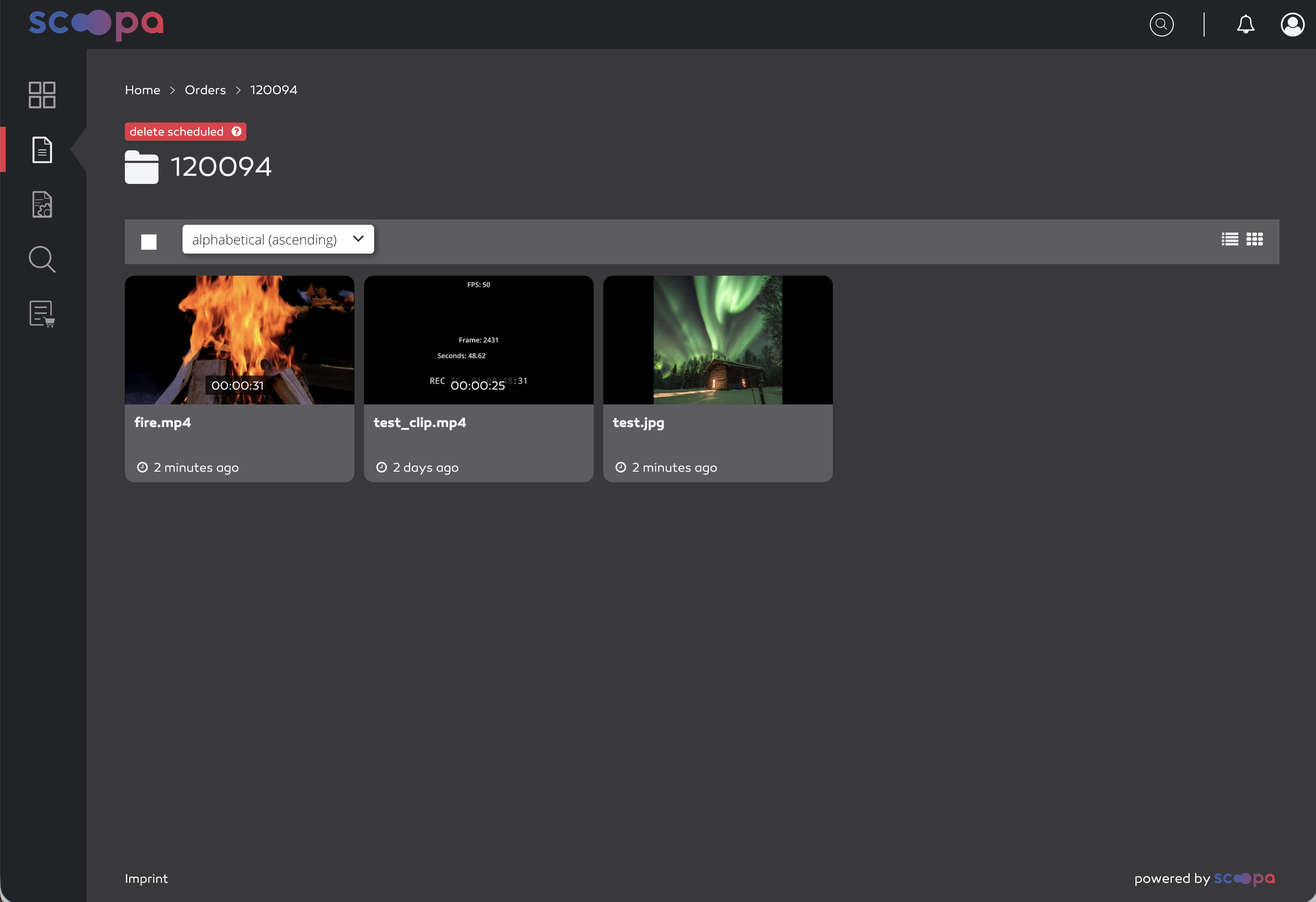
order download
The customer receives a confirmation email immediately after approval and can use the link in the email to navigate directly to this folder to download the files either individually or via multi-select.
All ordered assets can be downloaded for 7 days. After that, the order folder and the files it contains are automatically deleted.
Reject order
Clicking “Reject” will reject the order, and the customer will receive an email notifying them that their order has been rejected.
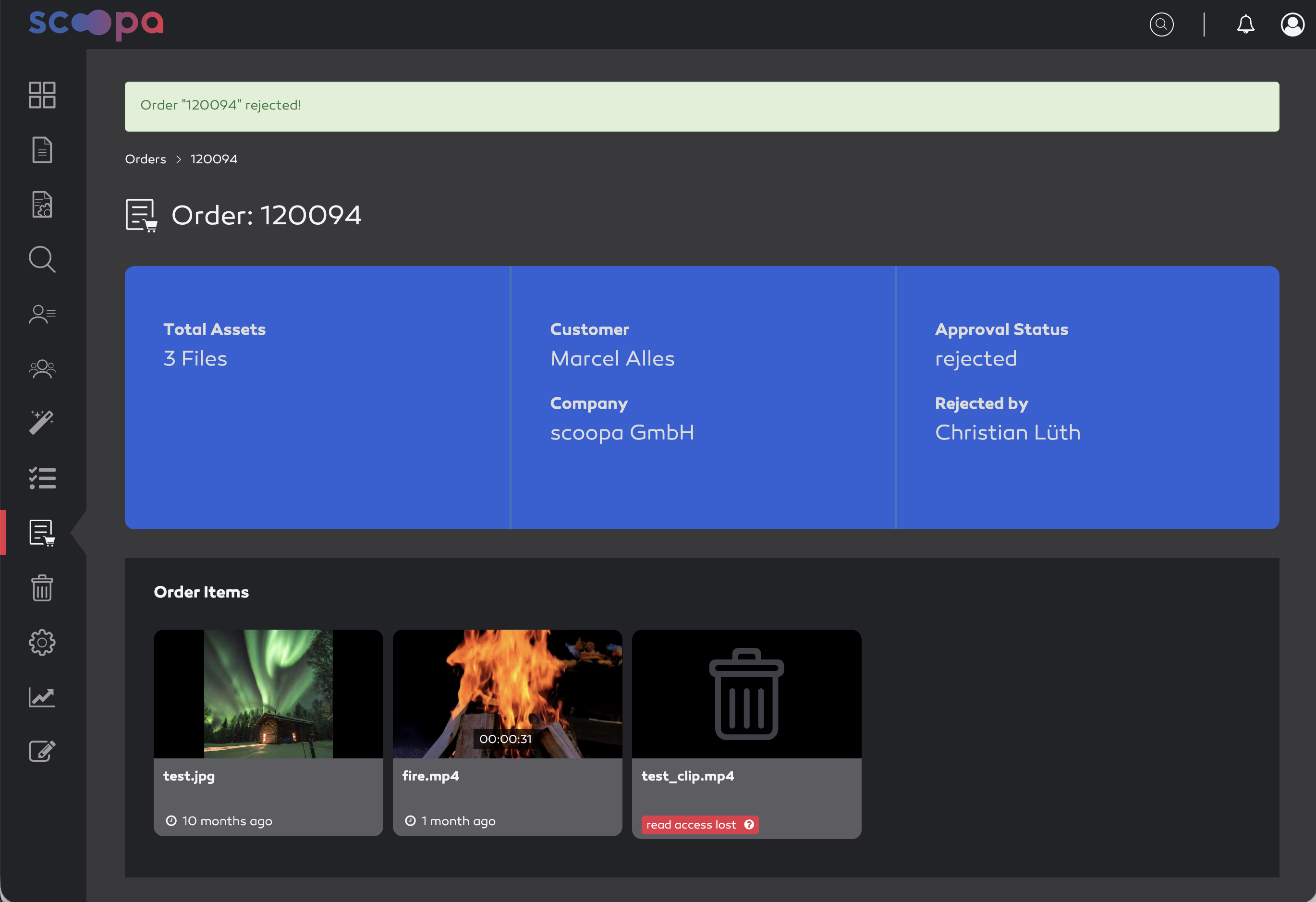
order rejected
Order history
If you click on the icon with the list and shopping cart in the menu on the left, the order summary or history will open.
View for users
Users see an overview of all orders sorted in descending order by order date, along with any relevant approval information (approving admin, date and time, and status).
The list can be filtered using the search field (e.g., by date or approving admin) or via the status drop-down menu. You can also sort the list by clicking the corresponding arrows in the header.
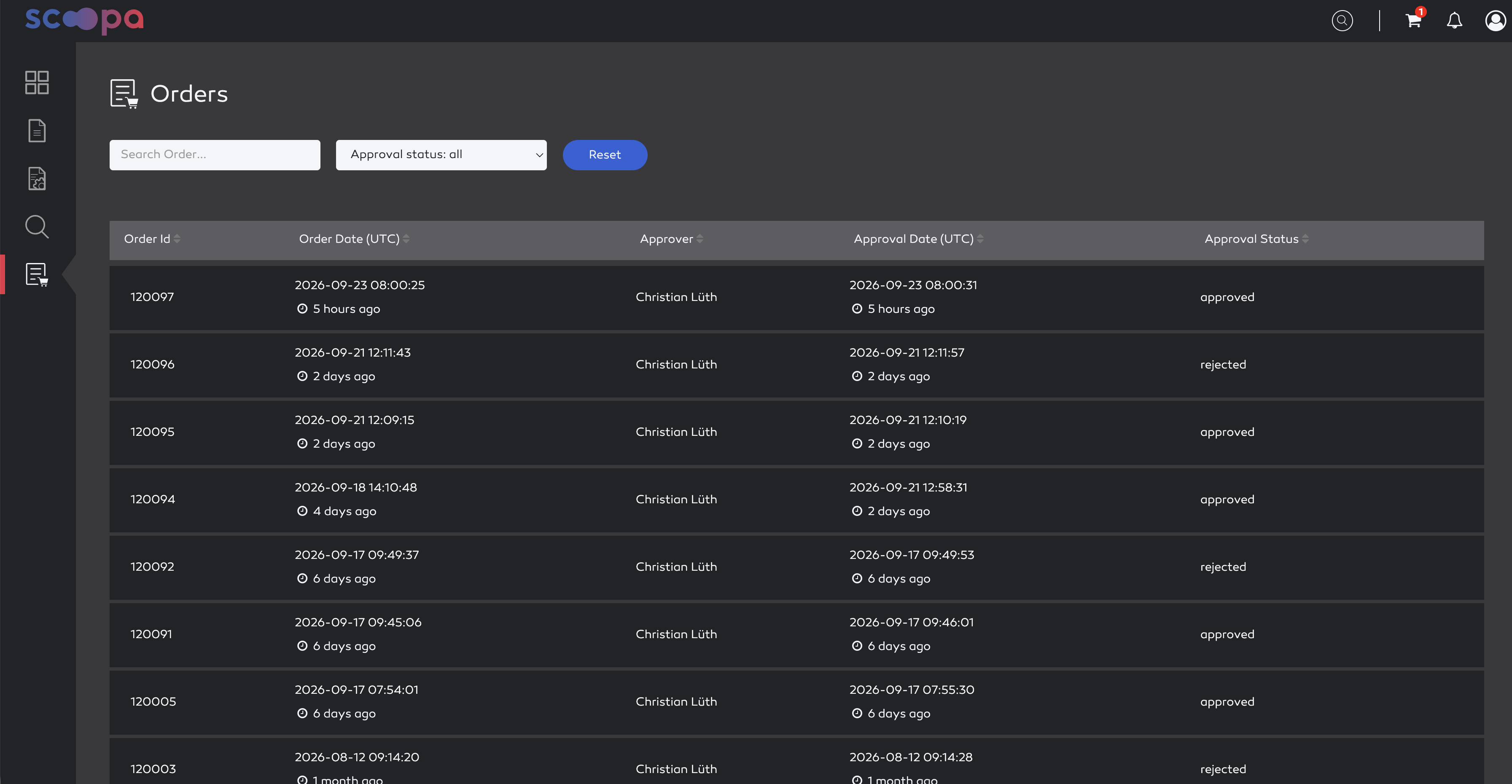
order history
For all orders that are no older than 7 days, a detailed view can be opened by clicking on the corresponding order. This view contains information about the order, such as the number of assets ordered and the order status.
Below that, all ordered assets are listed in a grid view, including filenames, preview images or videos, and upload dates. Clicking on an asset opens the file’s detail view in the order folder, provided the order has been approved. Otherwise, the detail view of the original file opens.
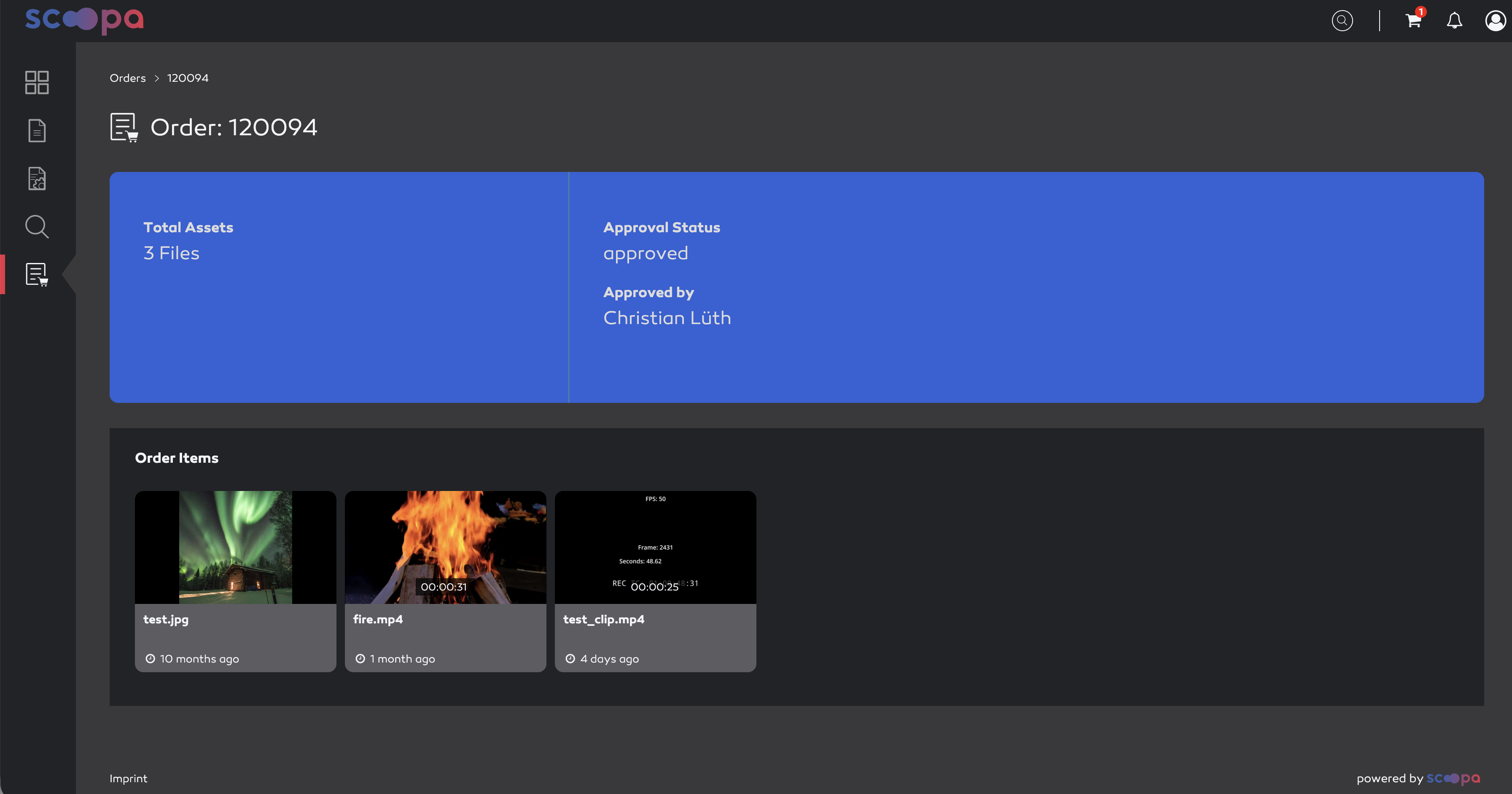
order details
View for admins (approver)
Approving admins can view all users’ orders in their overview. In addition to the user view, you can also sort or filter by “customer” here.
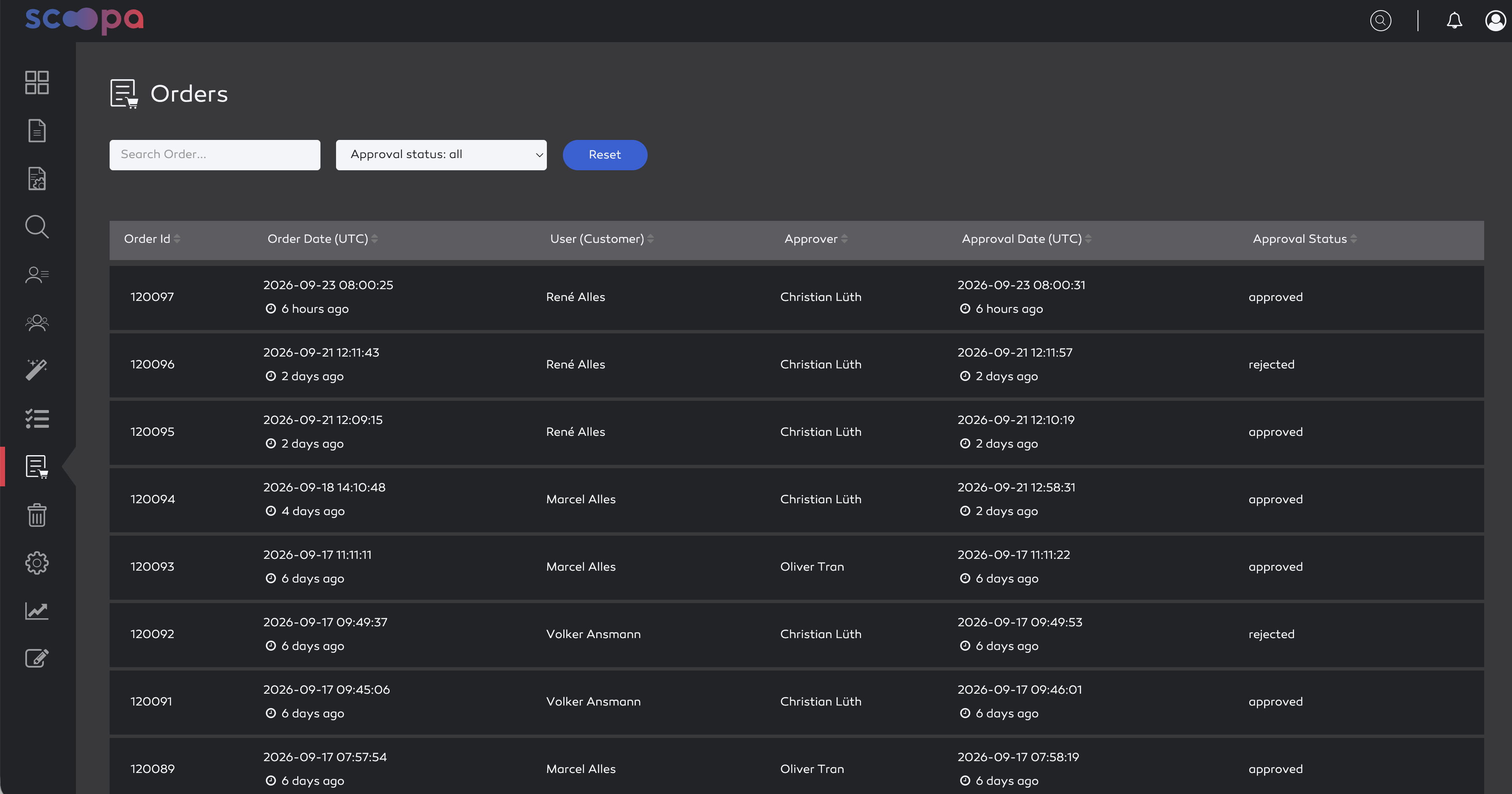
order history
In the detail view, the admin can see additional information about the requester. Requested orders can also be approved or rejected here. In the grid view below, the admin can navigate to the respective original asset by clicking on an asset.
order details