-
Introduction
-
Core concepts
-
Digging deeper
-
Frequently asked questions
-
Legal
Advanced Video-Player & Rough-Cut-Editor (RCE)
A brief overview of the function and use of the Rough Cut Editor in scoopa.
Overview:
The Advanced Video-Player allows you to view, edit and export video material directly in the scoopa cloud. The special feature: You can create individual scenes or highlight packages with the Rough-Cut-Editor from archived files without having to restore the original (often very large) file completely from the archive storage. This saves significant costs on restore fees and massively accelerates your workflow.
Key Features
Archive Editing: Create clips directly from the deep archive without performing a complete restore.
Logging: admins and users who have been given the right to comment can add timecode-based comments to a video.
Frame-accurate control: Use precise play controls and timecode displays for exact in and out points.
Multi-channel audio: Support for multi-channel assets (over 8 channels) including waveform display and solo switching of individual tracks.
Extended Download-Options: You can download every audio-track as a mono mp3
Quick-Preview: You can mouse-hover over the video-track to display a thumbnail-based preview animation of the video.
Flexible export: When exporting, select from a variety of target codecs tailored to professional users.
About Feature-Availability
Please note that the Rough-Cut-Editor as well as logging options may not be available to you, based on your given permissions or the included features in your contract.
How to create Log Entries
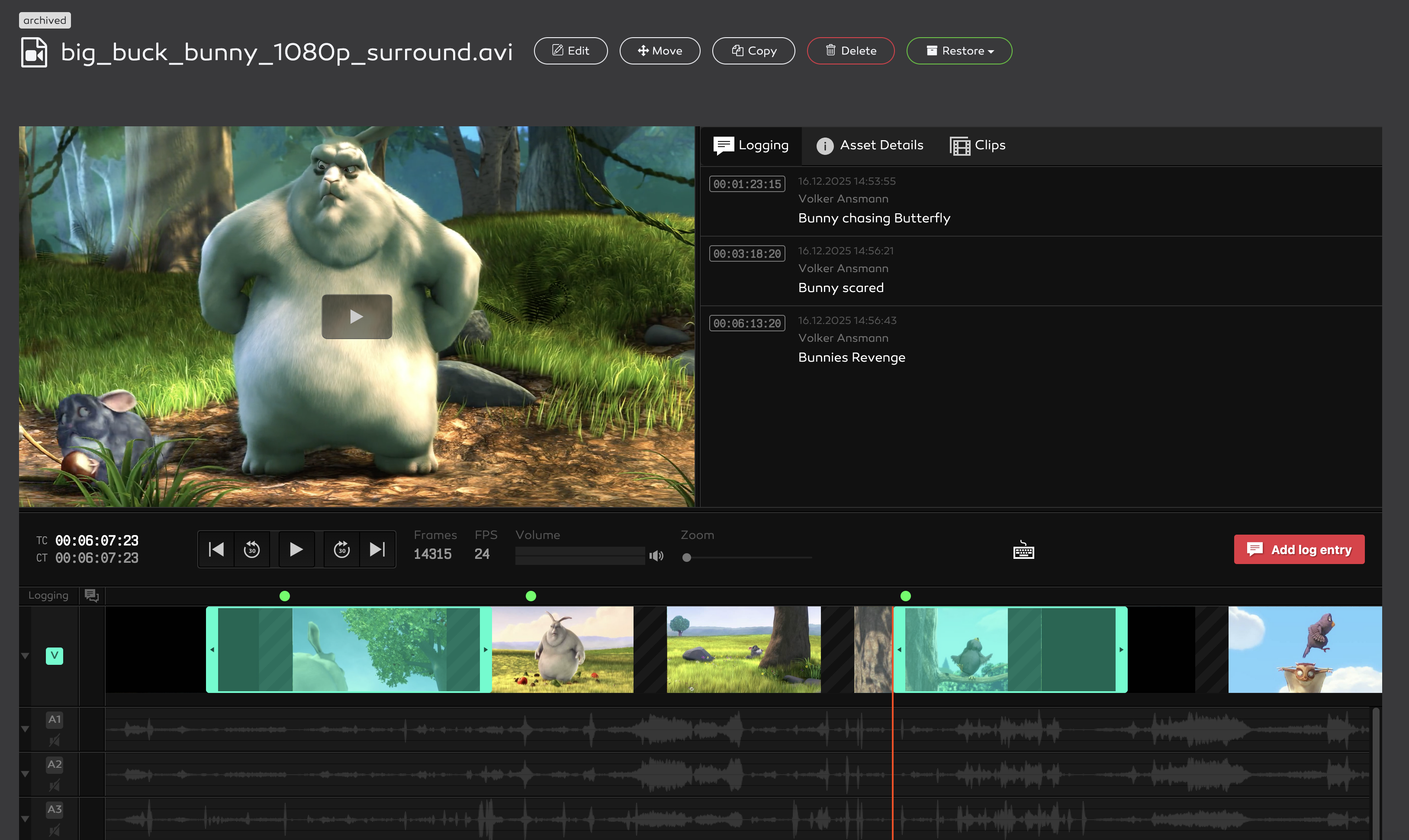
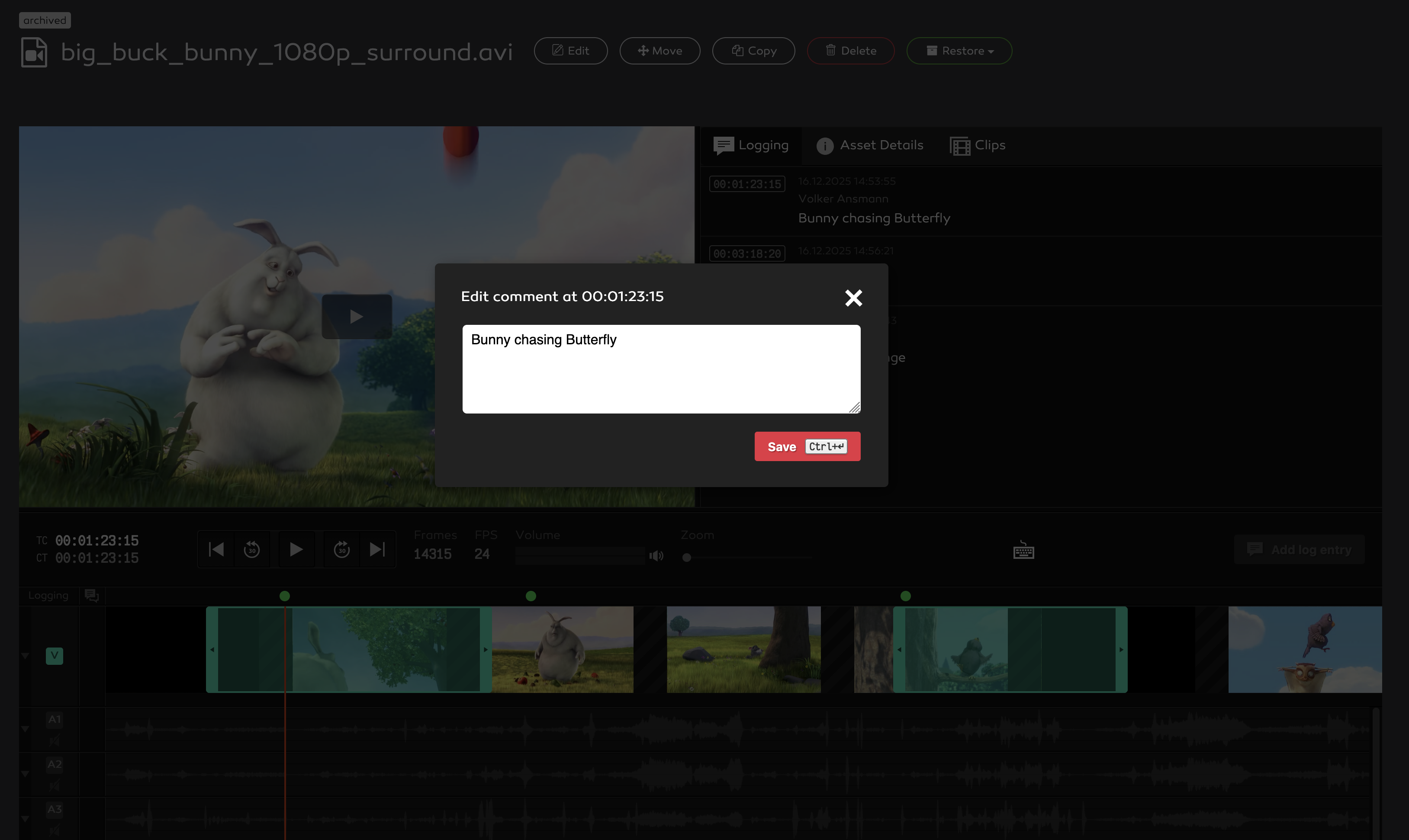
You can create Log Entries by either clicking at the desired location in the log-track in the timeline or hitting the red "add log entry" button. Existing Log Entries are indicated by a green dot in the log-track as well as in list-form under the "Logging"-Tab.
Log Entries are visible for all users.
How to use the Rough Cut Editor
Create Clips
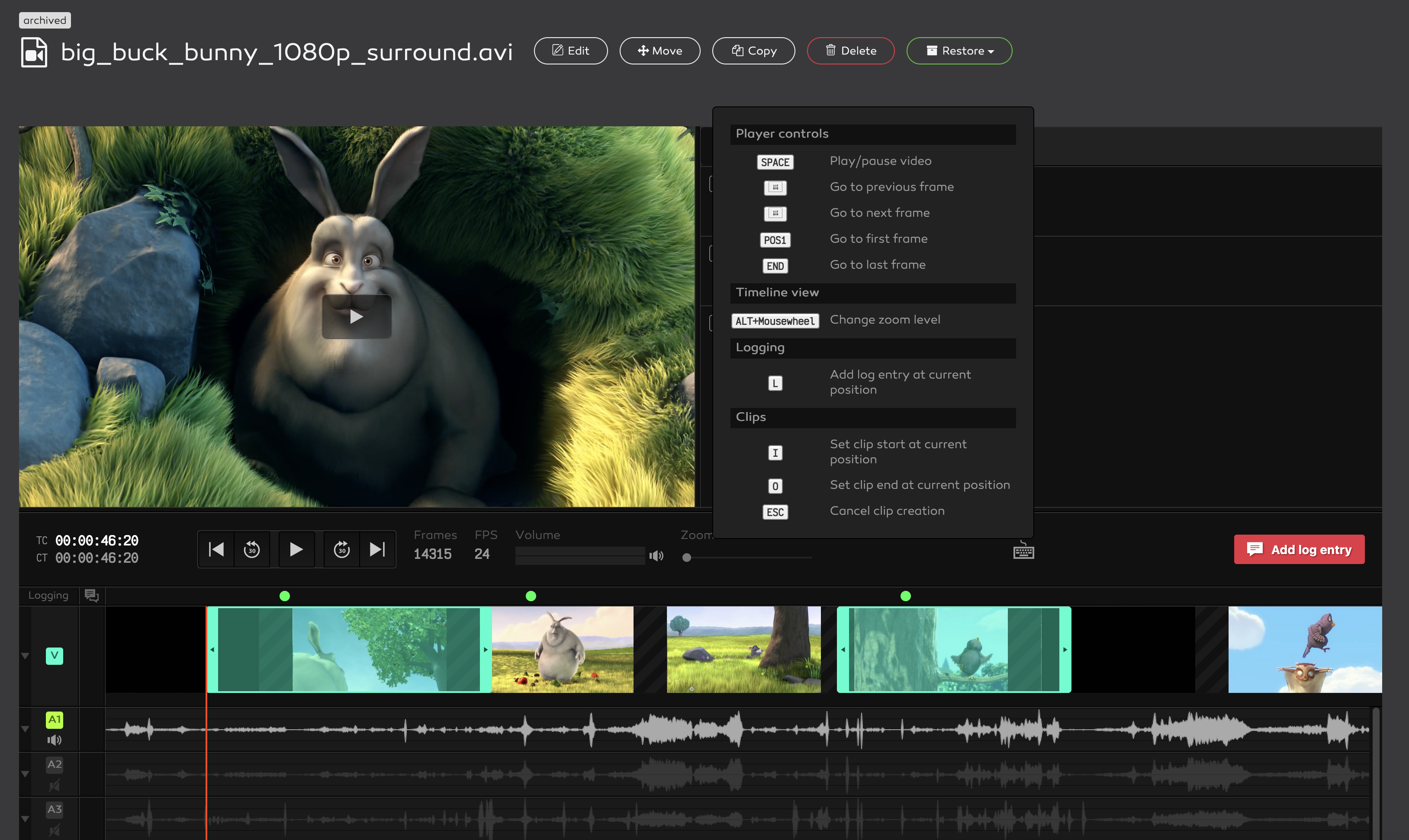
Use the preview window with precise timecode display (TC) and counter (CT) to navigate through your material. You can use the on-screen or keyboard-controls to control play, pause, jump forward and backward as well as create logging entries or clips.
You can create a new clip by clicking and dragging the mouse to select an area in the video-track or by navigation to your desired in-point and hitting "i", respectevly "o" at the desired out-point.
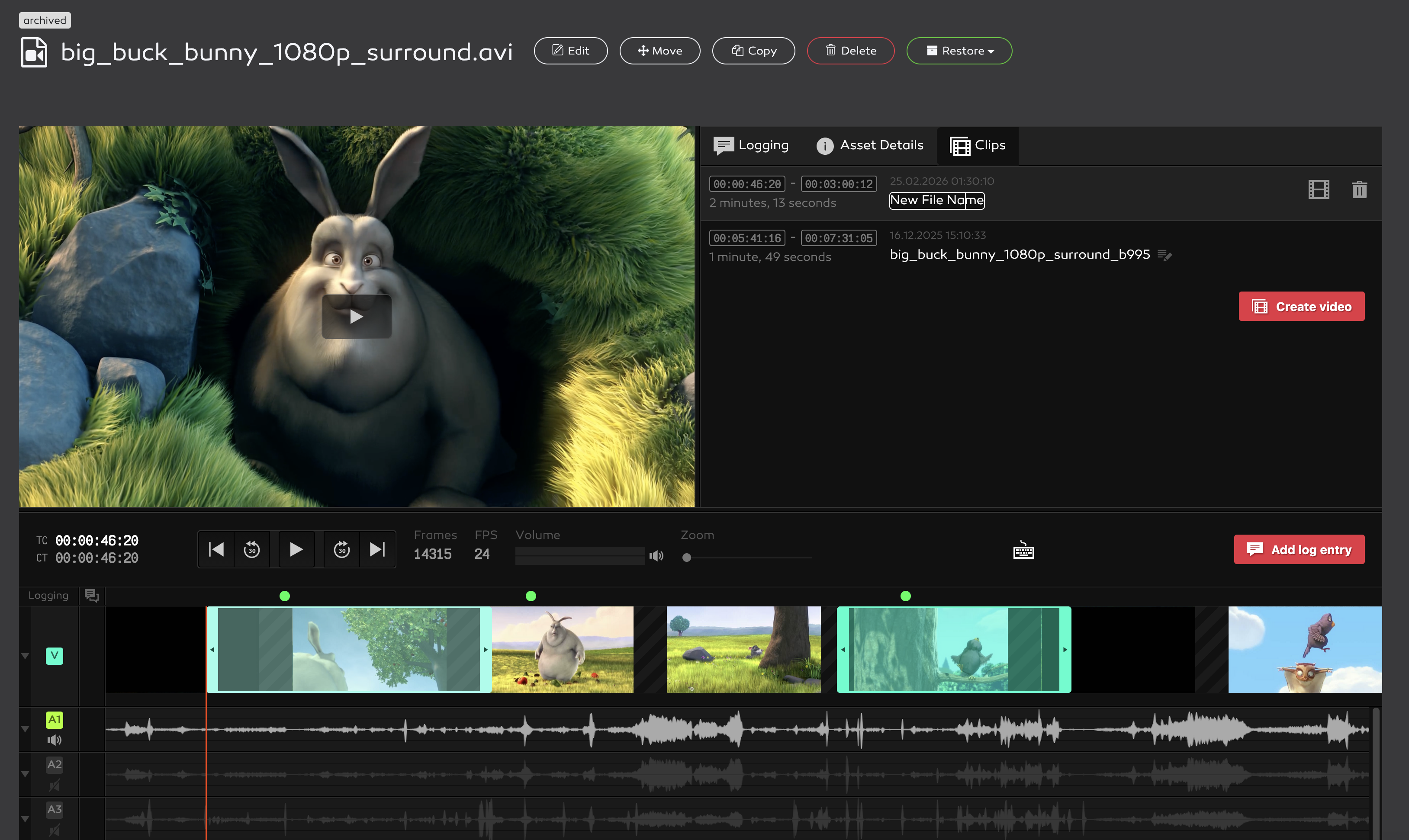
The active tab will automatically switch to "clips" where you can see a list of all your clips, in addition to the visual representation in your timeline. You can also change the clip-names by simply clicking in to the name field.
You can also see TC-In and TC-Out as well as duration and creation-time and date of the clip.
Visibility of clips
Please note that clips are private, as in: tied to a single user, thus - clips that you create are only visible for you. Once you send them to be encoded, clips may get public at a later point
Send Clips to Encoding
Once your selection is complete you have 2 options to actually create new video-files from your clips.
Create a video from a single clip
Create a video consisting of all your clips (from the same source file)
You can export your new video either in your "Encoding Jobs" Folder (visible only to you, and also your only option when you are a normal user with the RCE-Right) or you can place the new file directly in a normal scoopa folder. Placing in a normal folder will trigger all the usual automations, depending on the settings of the folder. (Notifications, Webhooks, etc.)
Considering Target-Codec-Options: the export will try to match your source file to one of our curated export codec options. But you can override this during export. The codec options are currently:
Apples ProRes (all variants)
DNxHR (all variants - but only supported resolutions like FullHD, UHD)
AVC-Intra 100 and 200
XAVC
XDCAM HD 422 (available ony for interlaced sources)
h264 and h265
Additional Images


