Access Control

The new rights management.
The new rights management

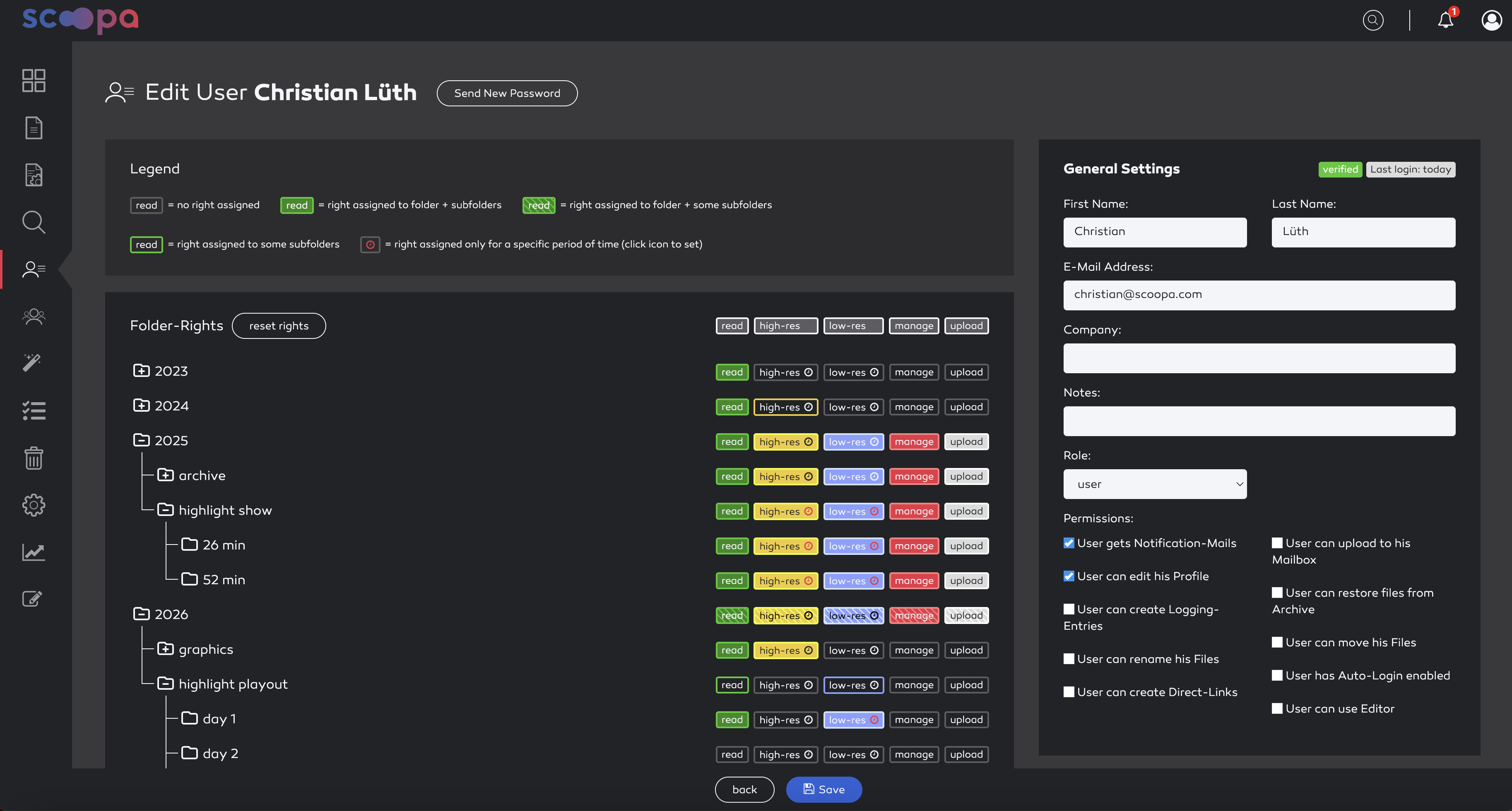
Access Control in scoopa allows for a very granular configurations. You are able to assign the following rights to users and usergroups:

  • read - user can view the folder and its content and also play the preview

  • high-res* - user can download the high-res version of all assets in the folder.

  • low-res* - user can download the low-res version of all assets in the folder

  • upload - user can upload to this folder

  • manage - user can manage the folder and the files within

You may also mass assign rights with the buttons on the top right of the matrix.

* = this right can be also set for a specific period of time. Please have a look at section "time limited download rights" below.

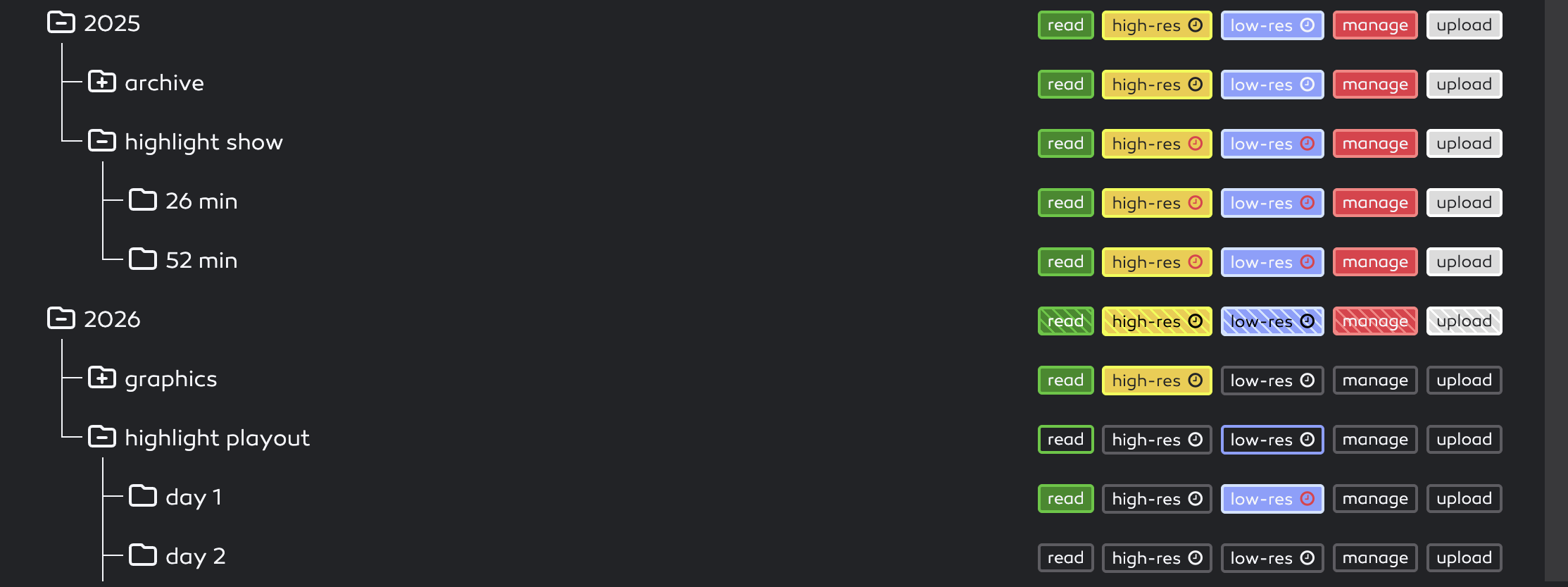
The new color scheme for the rights management.
The new color scheme for the rights management

As you may have noticed in the previous screenshots, the folder tree can now be collapsed to increase the overal visibility and to improve the management of large platforms with many folders.

It is also possible to toggle the whole tree with the new button "toggle collapse".

This feature is also available in the "edit user" and the "edit usergroup" view.


Time limited download rights

The rights to download high-res and low-res files can be limited in time. To do this, the corresponding right must first be activated (yellow for high-res or purple for low-res). Otherwise the icon is not clickable.

Clicking on the clock icon of the relevant folder opens a dialog window. Here you can configure the time window during which files in this folder can be downloaded by the currently selected user:
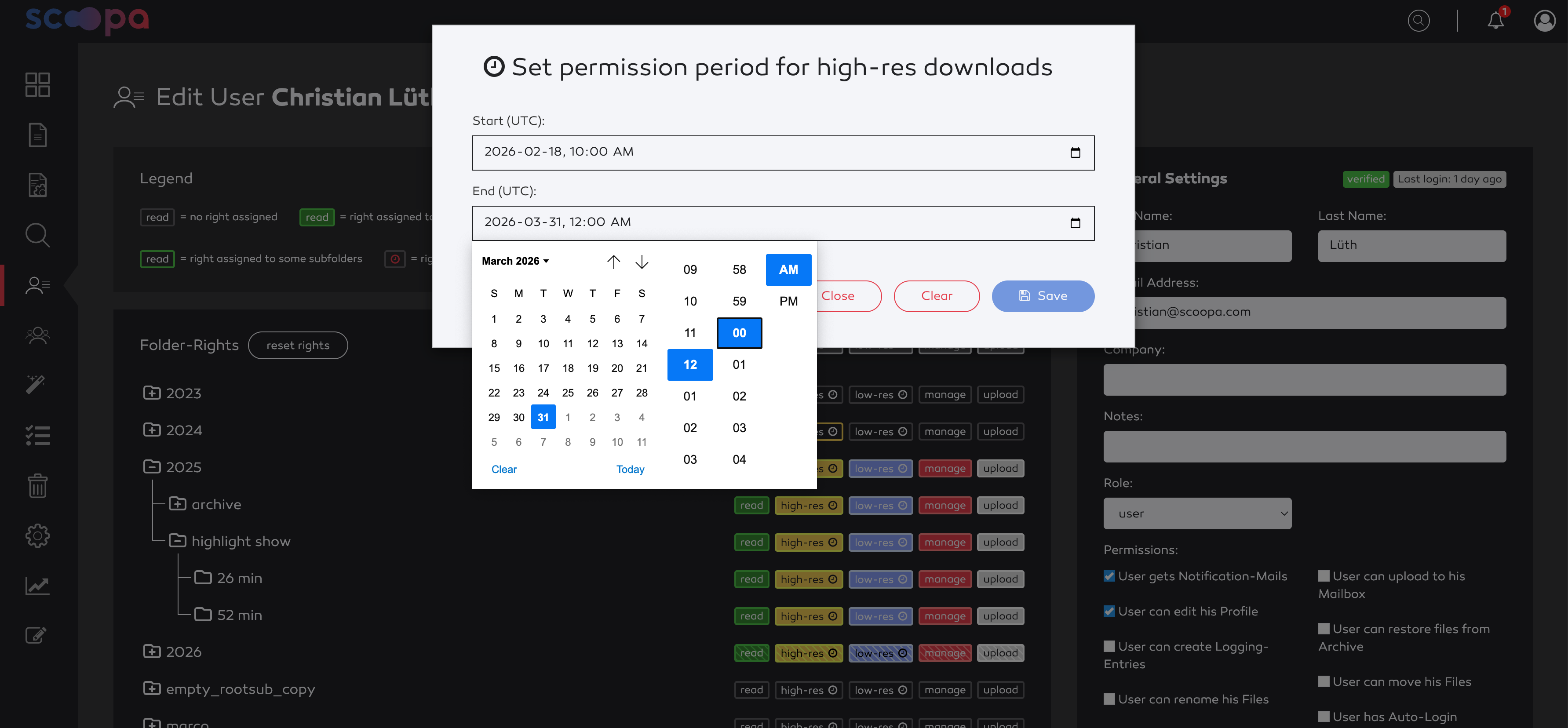
set period for time limited download rights on folder.
set period for time limited download rights on folder

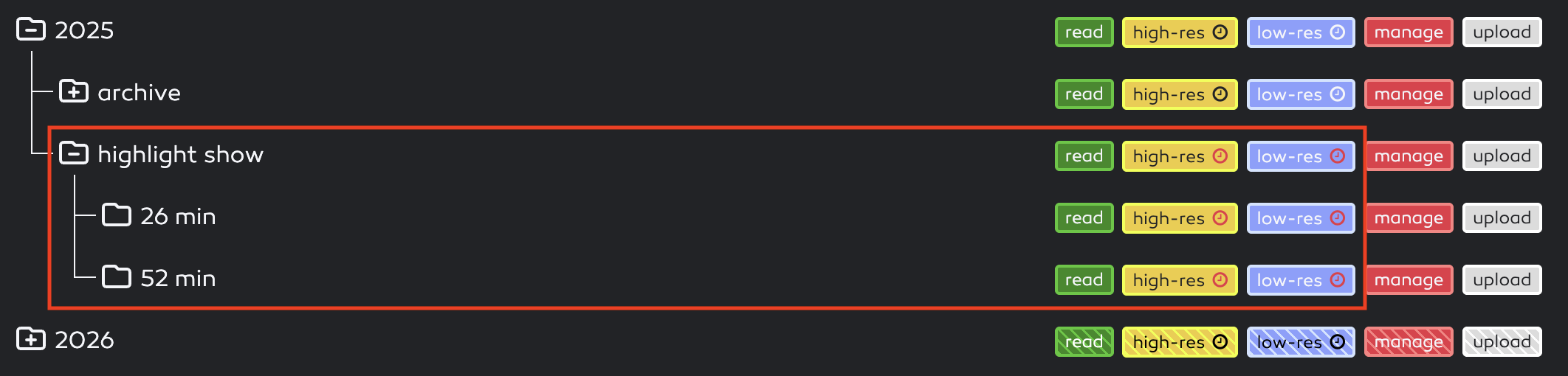
Red clock icon showing time limited download rights.
Red clock icon showing time limited download rights

Setting the high-resolution download right for a specific time period also activates the low-resolution download right for the same period, provided that it is activated (purple background).

If you want to delete the permission again, you can do so in the same pop-up window by clicking on “Clear.” The permission will then be active again for the folder and all activated subfolders.

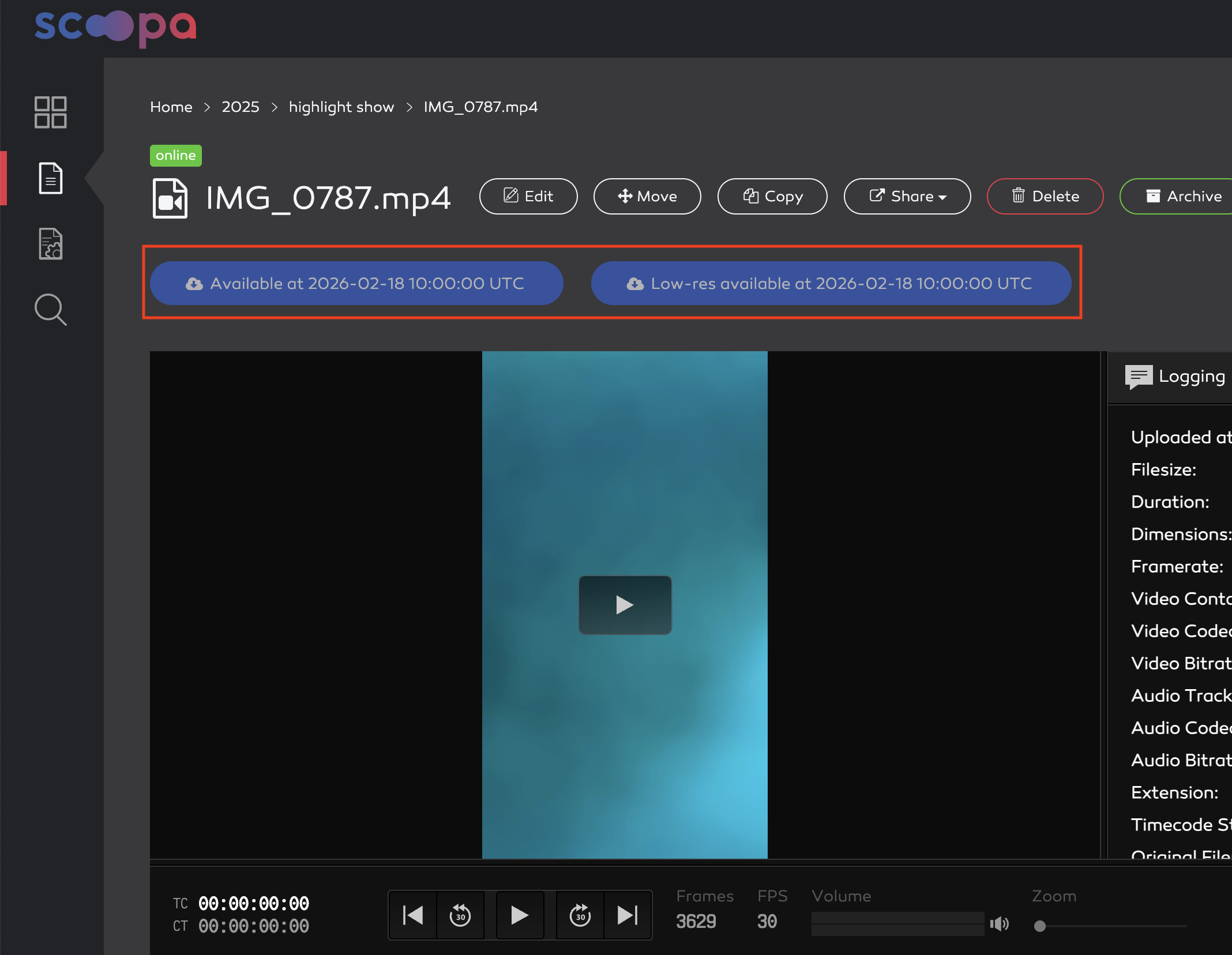
If the user opens any asset in this folder, the corresponding download buttons are hidden and replaced with a note indicating when the file will be available for download. As soon as that time is reached, the buttons become active.
Notifications

When a new asset is uploaded, the user receives two notifications:

  • The first one is sent at the time of upload, as usual. The email informs the user when he will be able to download the file.

  • As soon as the download time has been reached, the user receives another email stating that the file is now available for download.