-
Introduction
-
Core concepts
-
Digging deeper
-
Frequently asked questions
-
Legal
Edit user group
To edit a user group, click the edit icon or the group name in the user group listing.
The edit view is split into 3 parts:
access control
general settings
associated users
General Settings
Let's begin with the general settings.
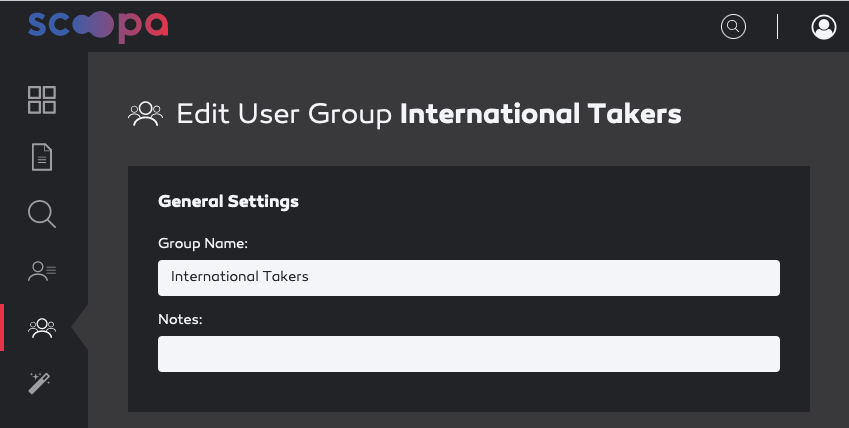
Edit user group - general settings
You can edit the "Group Name" as well as the "Notes" field.
Access Control
The next section is access control. You can fine tune the folder rights for the current user group. This is the same rights matrix as in edit user.
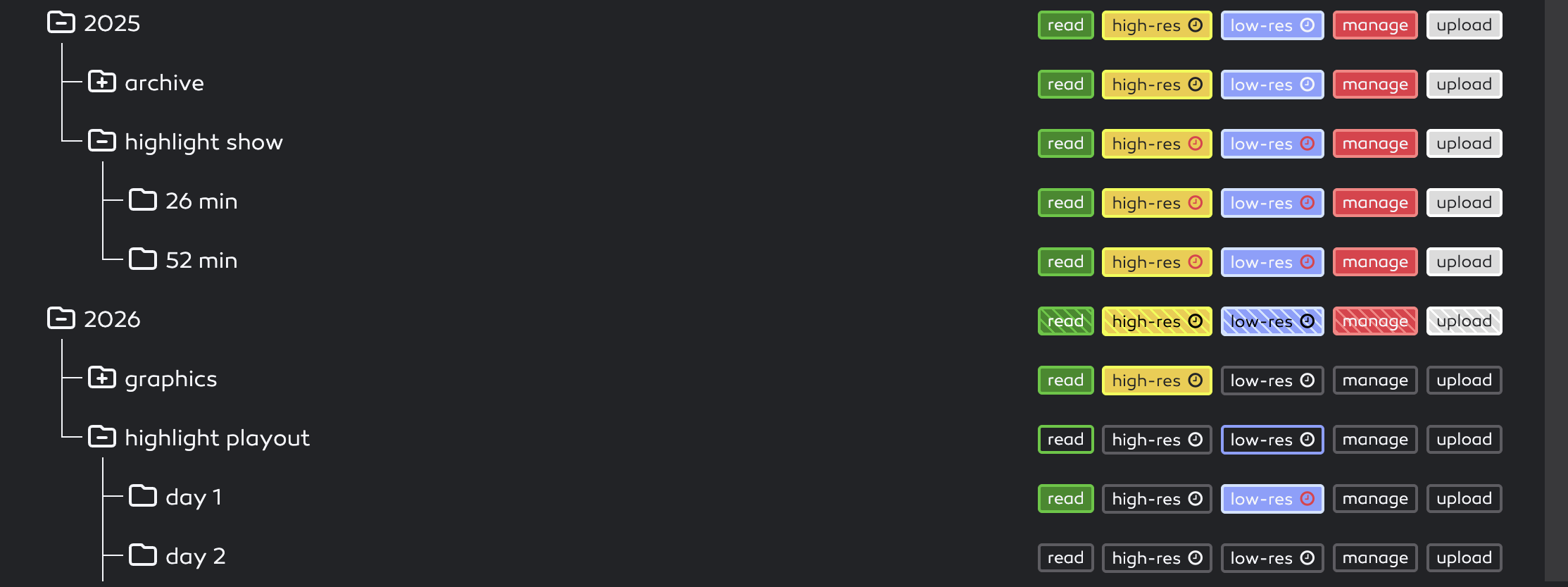
The new color scheme for the rights management
There are 5 different rights that can be assigned:
read – the user group can view the folder and its contents as well as watch previews
high-res* – the user group can download the high-res/original version of the file
low-res* – the user group can download the low-res version
manage – the user group can manage the folder
upload – the user group can upload new files to this folder
Click the respective rights buttons for a specific folder (or the buttons above the column to select all). Selecting a right will automatically applied to all the leafes in the folder tree below the selected folder.
You can collapse or expand the folder tree as needed by clicking the folder icon in front. This is especially useful for large folder trees.
* = this right can be also set for a specific period of time. Please have a look at section time limited download rights.
Rights & Inheritance
You can read more about user- and folder rights as well as rights inheritance here.
Associated Users
The third section is the inverse view of the edit user section. Here you can manage the associated users for this group.
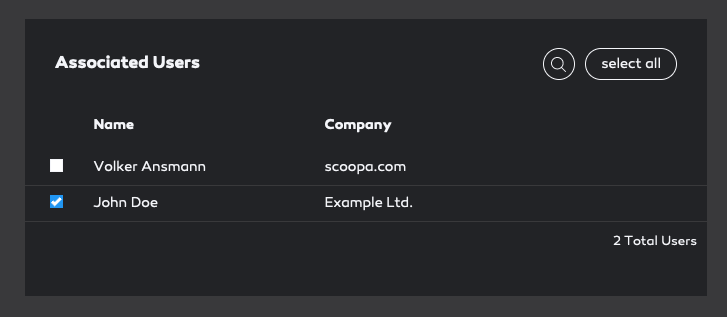
Associated users to a user group
You can see all the associated users as well as search in your userbase or select all.